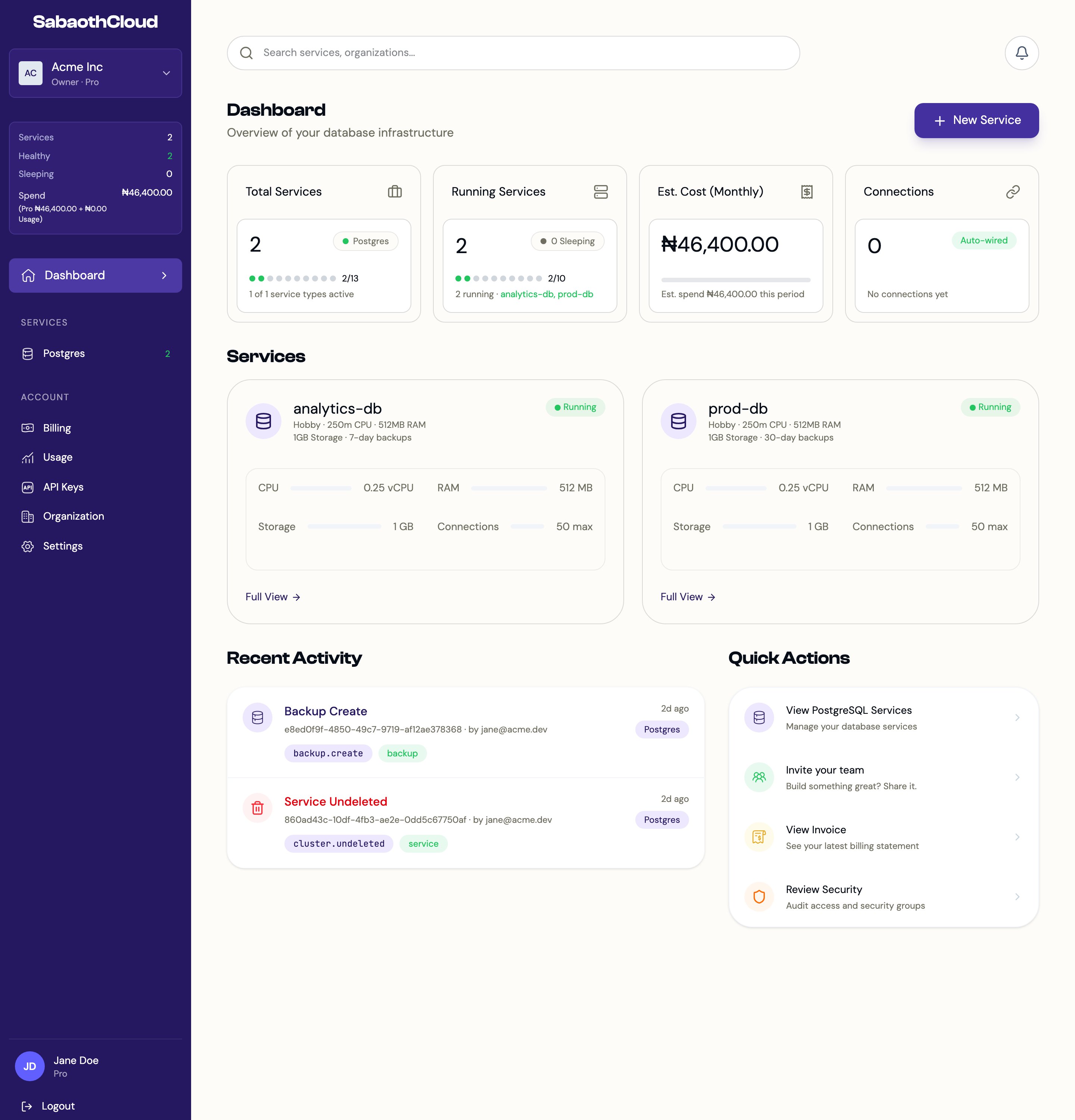
Sidebar
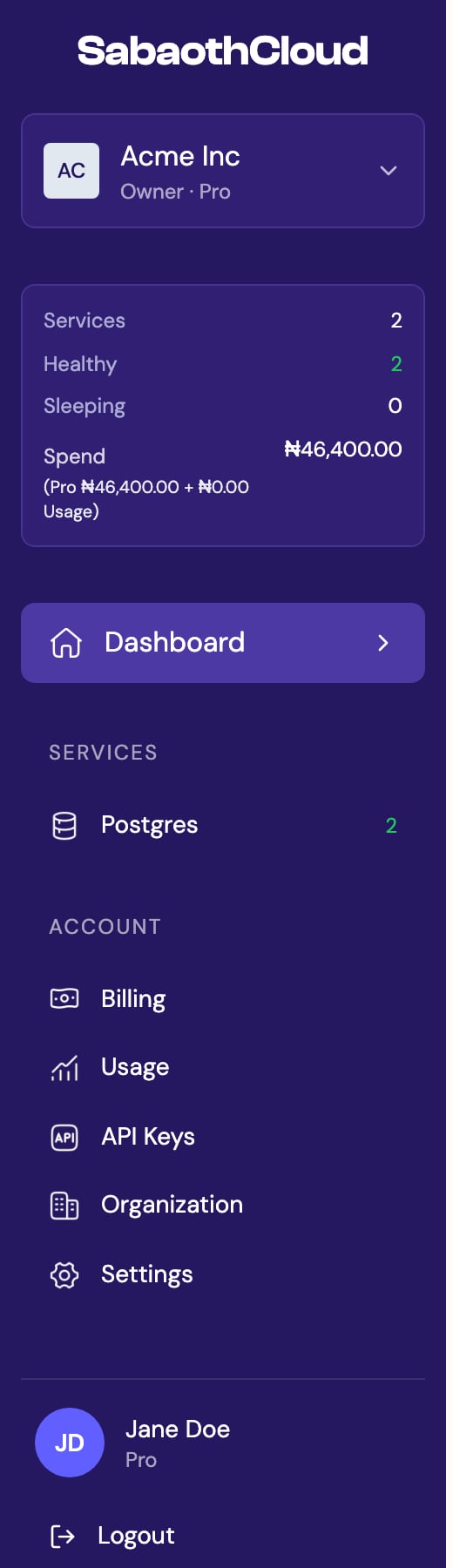
Your name and plan sit at the bottom of the sidebar, with Logout underneath. On desktop, you can drag the sidebar’s right edge to make it wider or narrower.
Switch organizations
Click the organization selector to see every organization you belong to. Choose one to switch to it, or use Create organization and Manage organizations at the bottom of the list.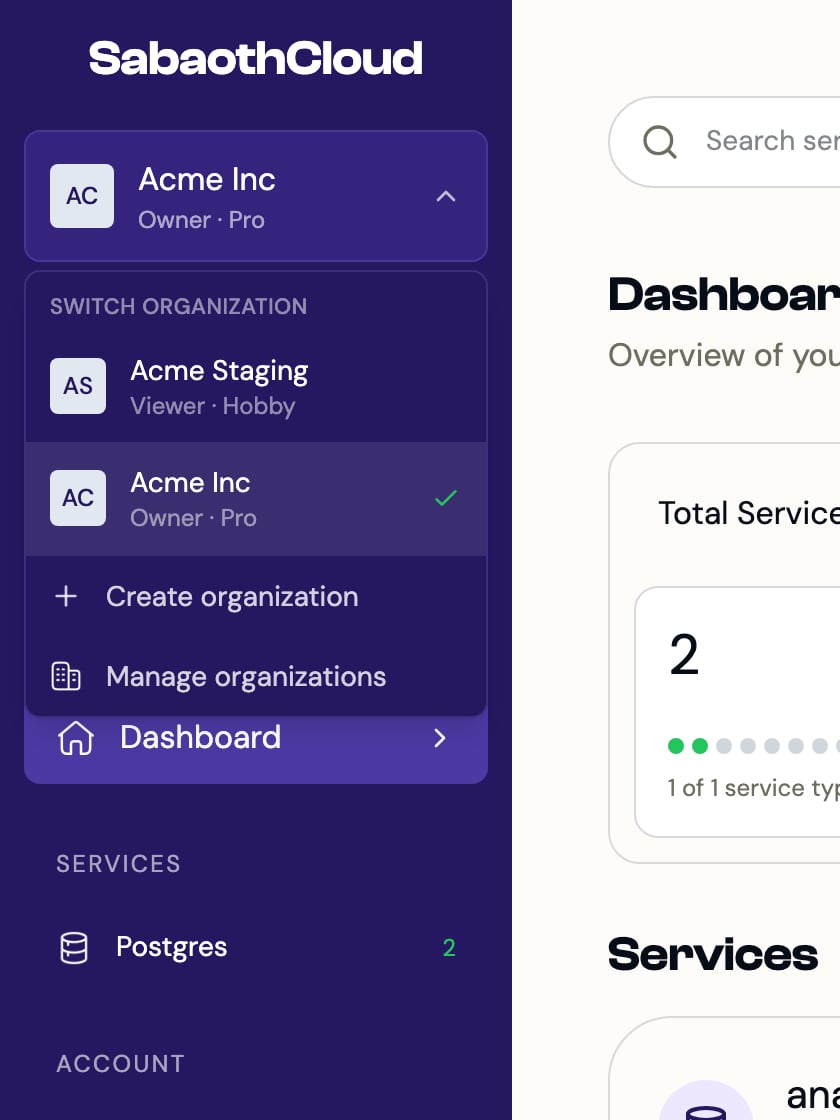
Home page
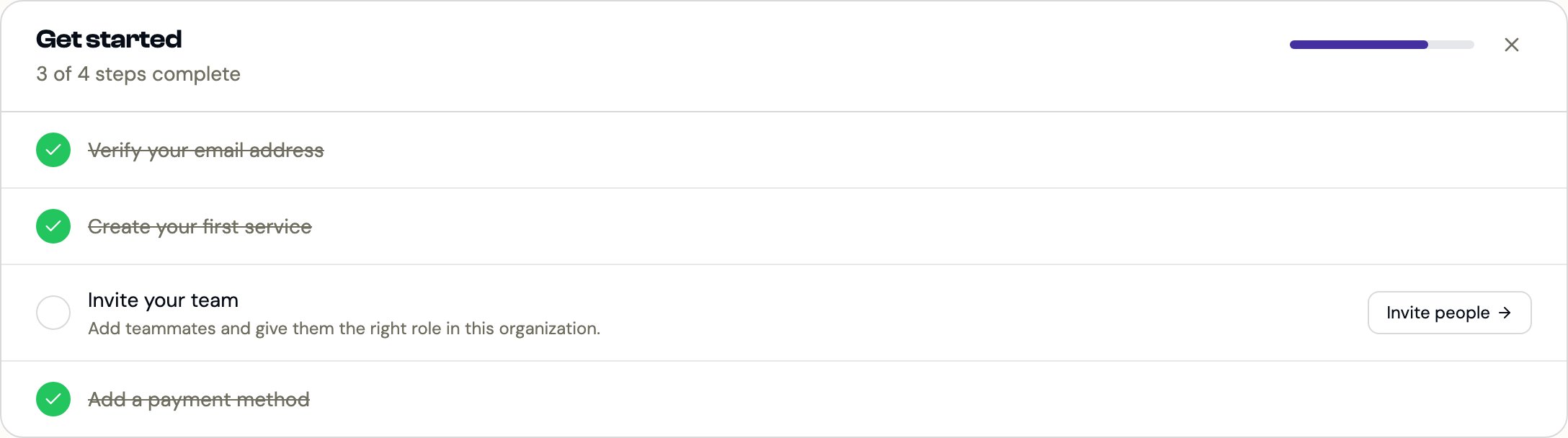
A new organization with no services shows a welcome screen with a Launch Service button instead. Select Skip to dashboard on that screen to go to the regular home page.
Search
Click the search bar at the top of the page to find services, organizations and pages. Use the arrow keys to move through the results and press Enter to open one.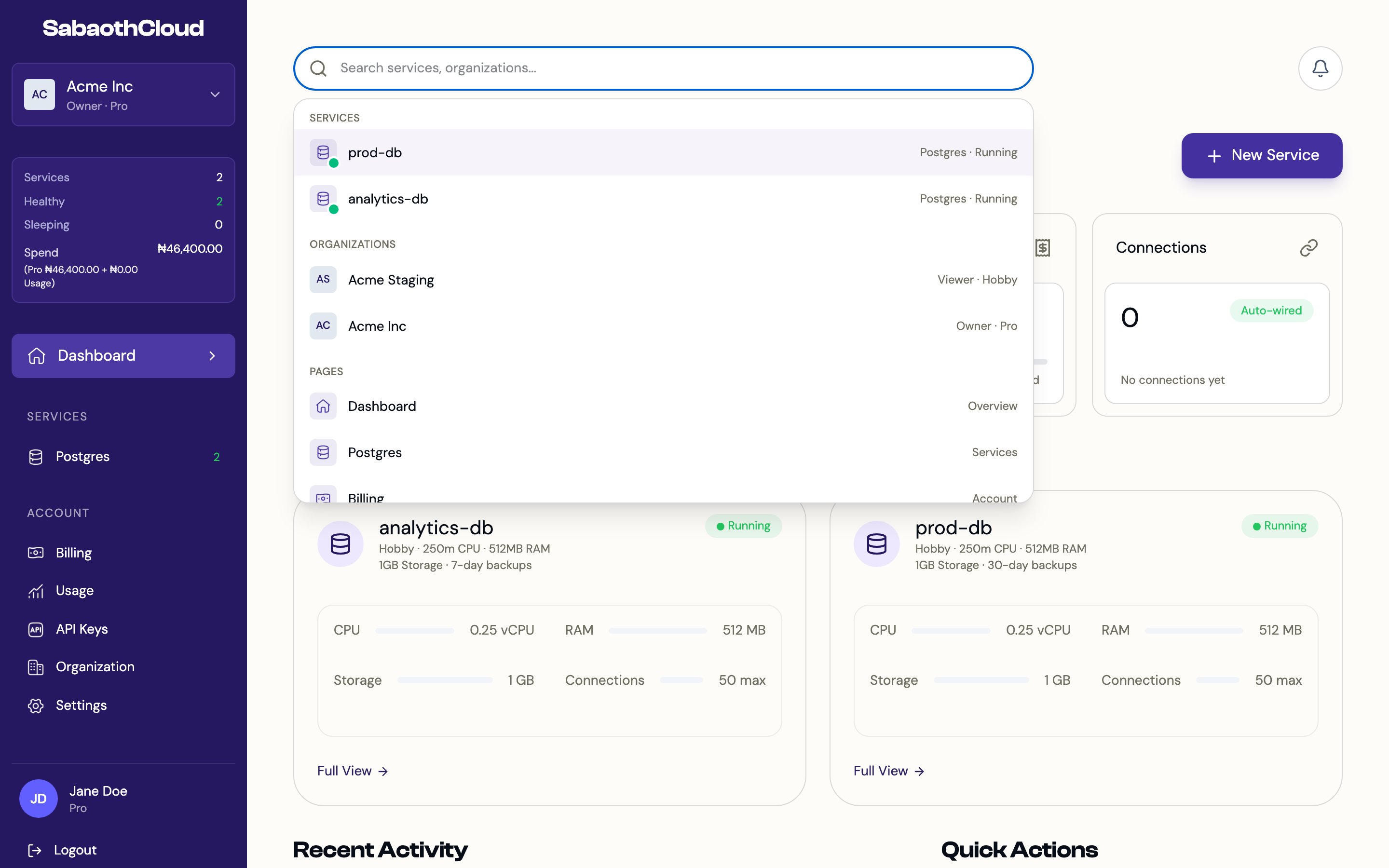
Notifications
The bell icon at the top right shows pending invitations to join other organizations. Click an invitation to open Organizations, then click View to review it and Accept or Decline. Owners and Admins also see View all activity, which opens the organization’s audit logs.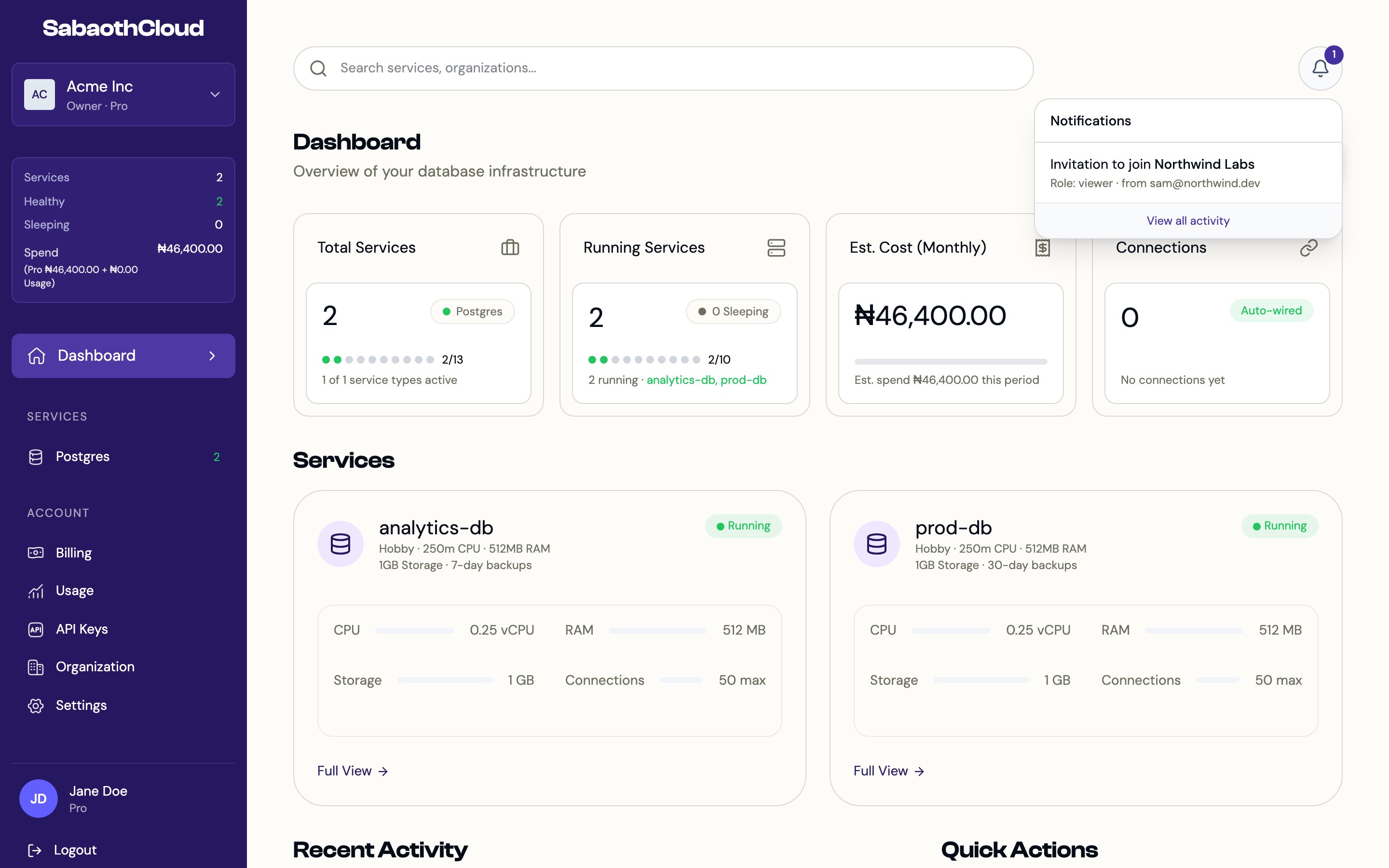
Roles and what you see
What you can do depends on your role in the current organization.
Buttons for actions your role can’t take are hidden or disabled. See Members and roles for the full breakdown.