The Postgres page
Open Postgres in the sidebar to see every PostgreSQL service in the organization.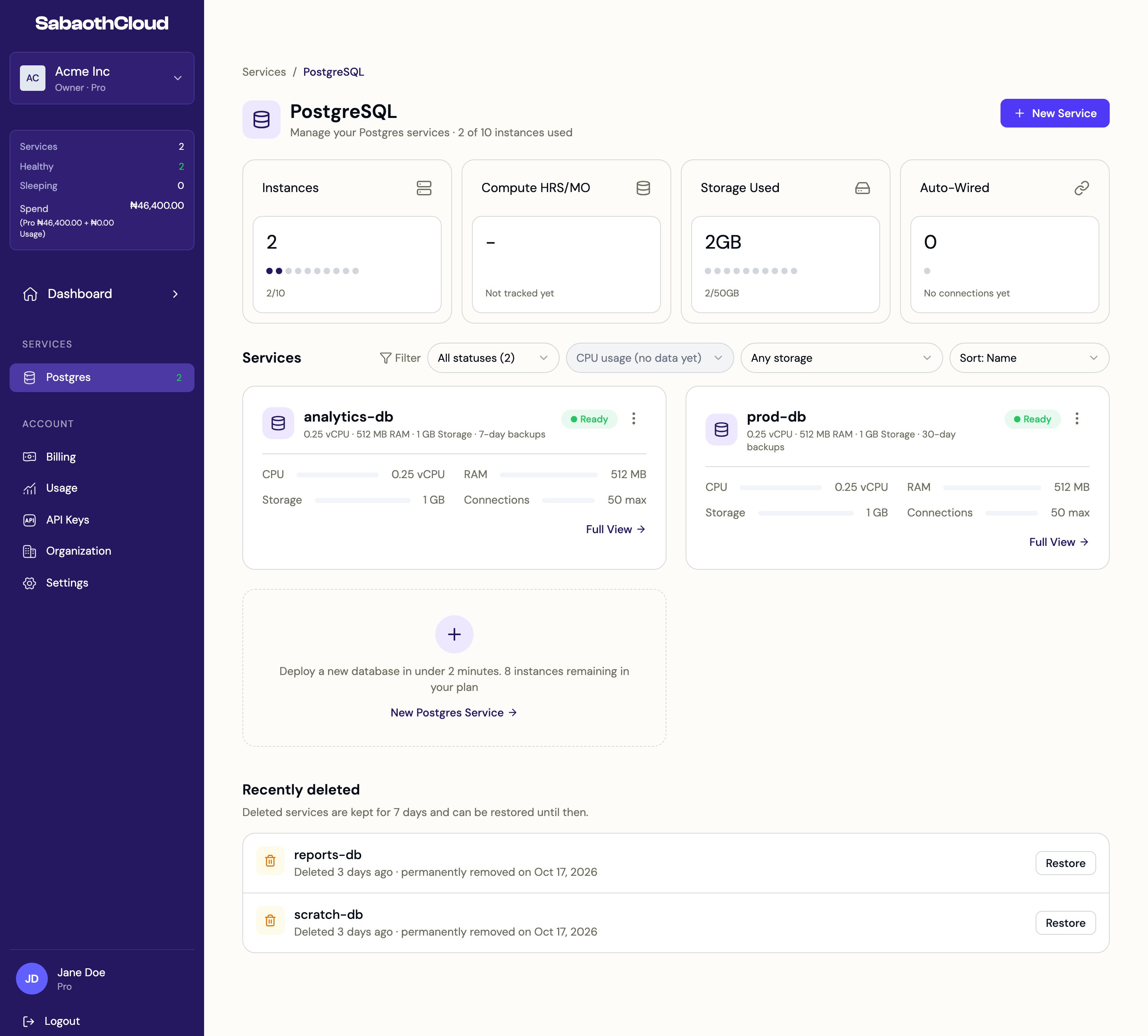
Service actions menu
Click the three-dot menu on a service card for quick access to its pages.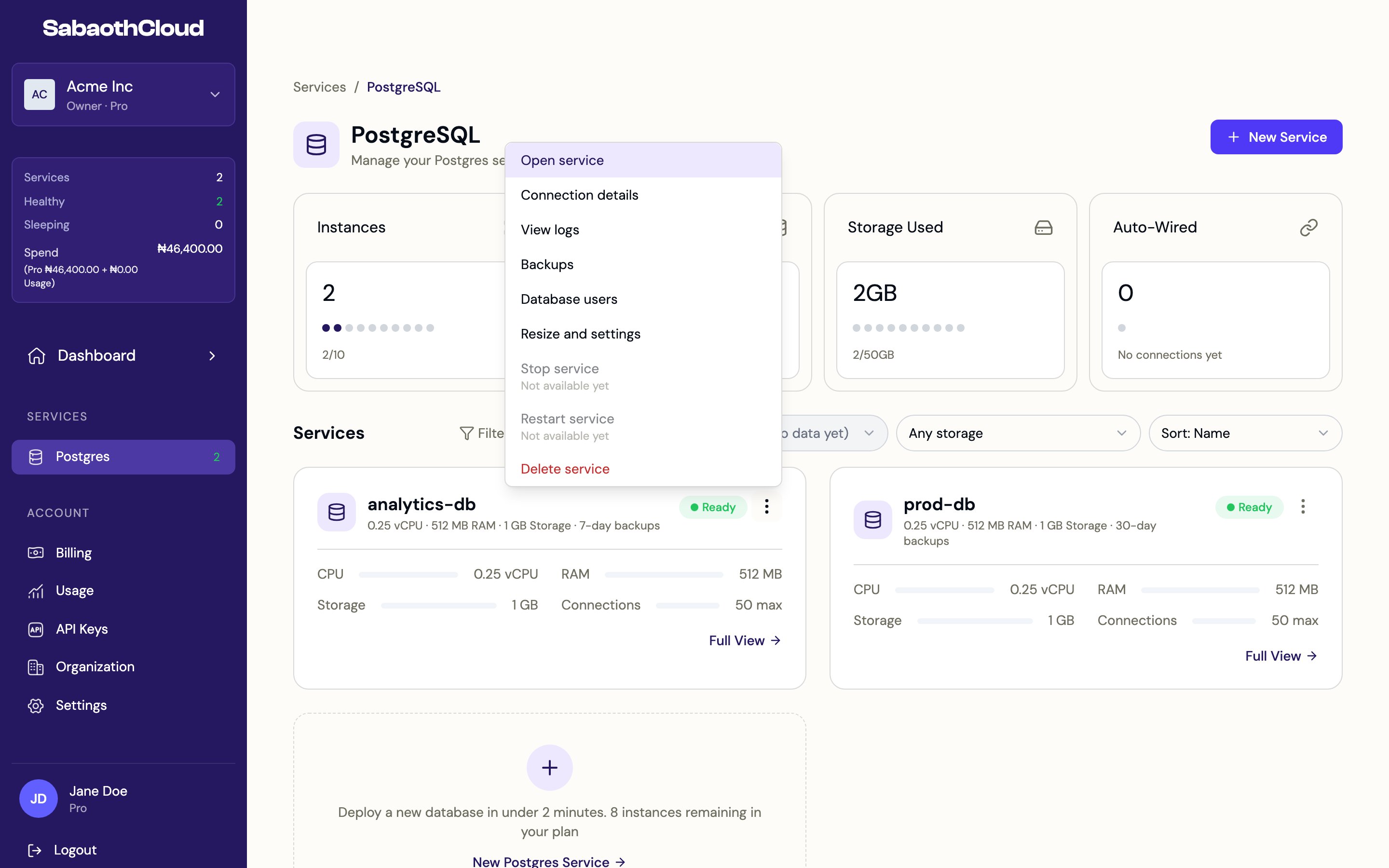
Service overview
Each service has seven tabs: Overview, Users, Backups, Pooler, Networking, Logs and Settings.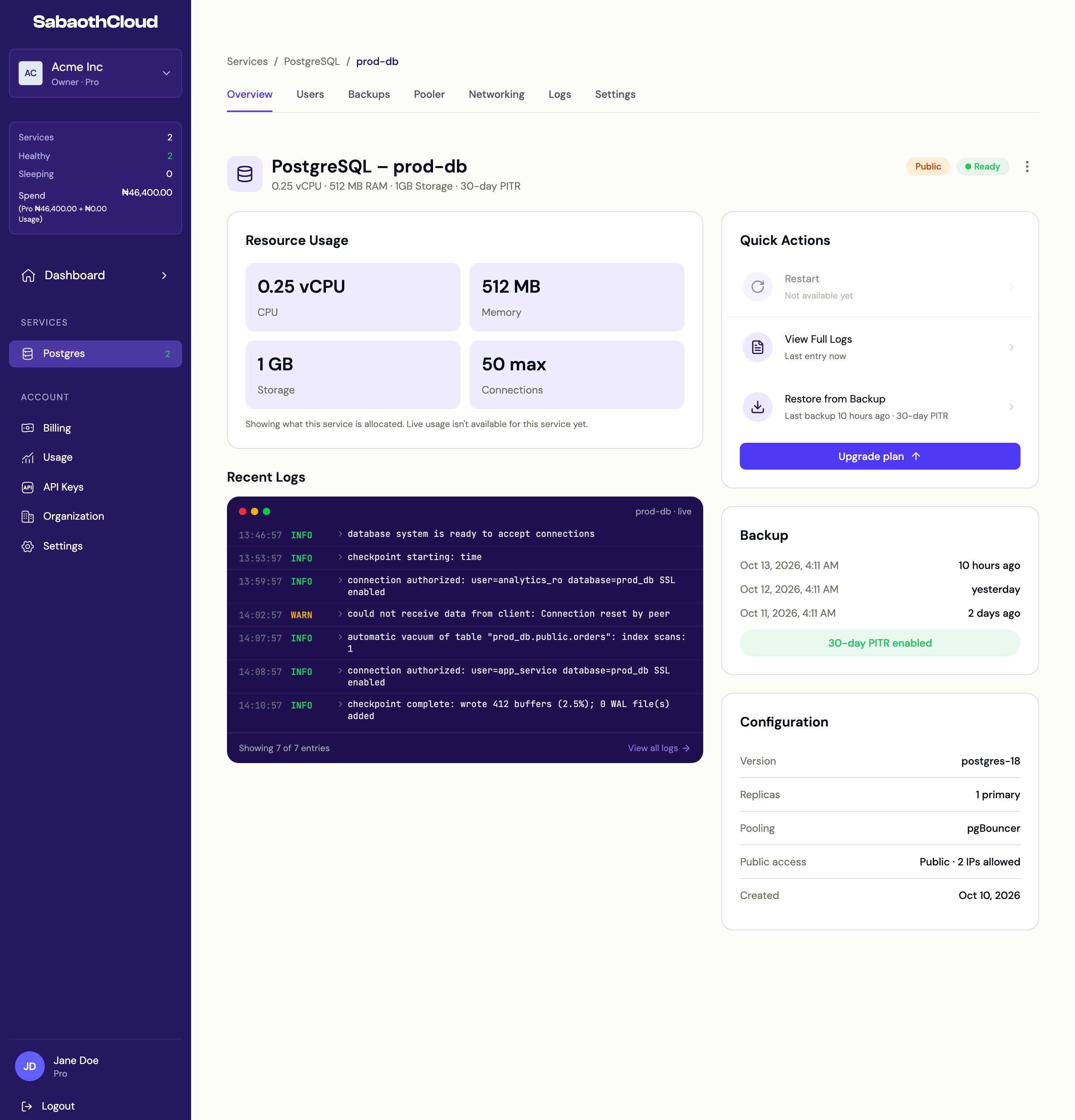
- Resource Usage: CPU, memory, storage and the maximum number of connections.
- Recent Logs: the latest PostgreSQL log entries. Click View all logs for the full log view.
- Quick Actions: shortcuts to the full logs and to restoring from a backup.
- Backup: the most recent backups and the point-in-time recovery window.
- Configuration: PostgreSQL version, replicas, whether pooling is on, public access and creation date.
Service status
While a service is changing, the page checks for updates every 15 seconds and most changes are paused until it is Ready again.
Resize a service
Open the service’s Settings tab.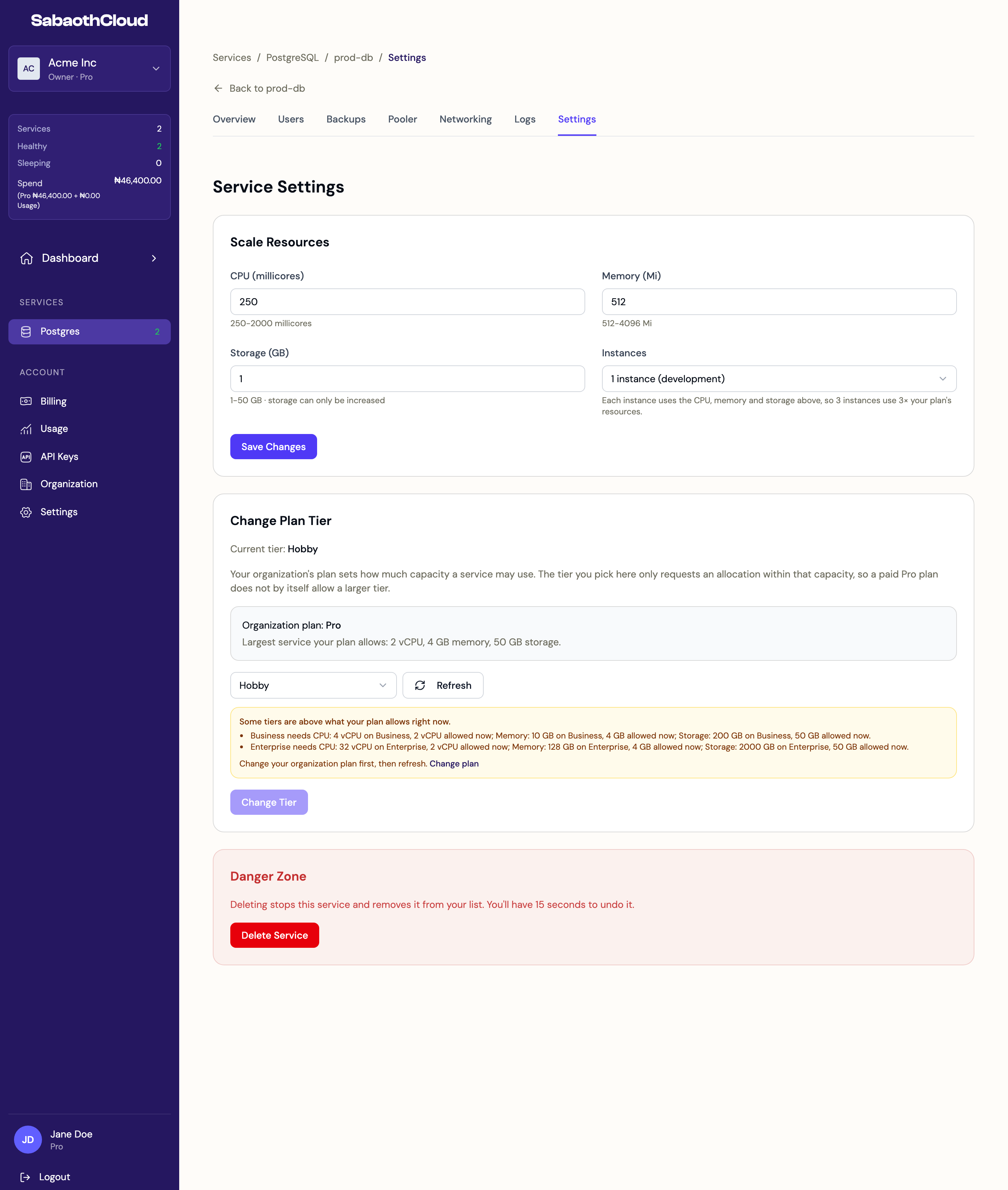
Click Save Changes. The service shows Scaling until the change is applied.
The largest size you can choose is set by your organization’s plan. To go bigger, change your plan first.
Change a service’s tier
Under Change Plan Tier, the current tier and your organization’s plan are shown, along with the largest service your plan allows. Choose a tier and click Change Tier, then confirm. Tiers that are larger than your plan allows are disabled and listed with what they need. Change your organization’s plan first, then click Refresh.Delete a service
- On the Settings tab, scroll to Danger Zone and click Delete Service. You can also use Delete service in the actions menu.
- If connection pooling is on, click Turn off pooling in the dialog and wait for it to finish.
- Click Delete Service to confirm.
Restore a deleted service
Deleted services are kept for 7 days and can be restored until then.- On the Postgres page, find the service under Recently deleted and click Restore.
- Or open the deleted service and click Restore Service on its Overview tab.
Right after a delete, restore may wait a moment while the delete finishes. The button shows Waiting for delete… and completes on its own.