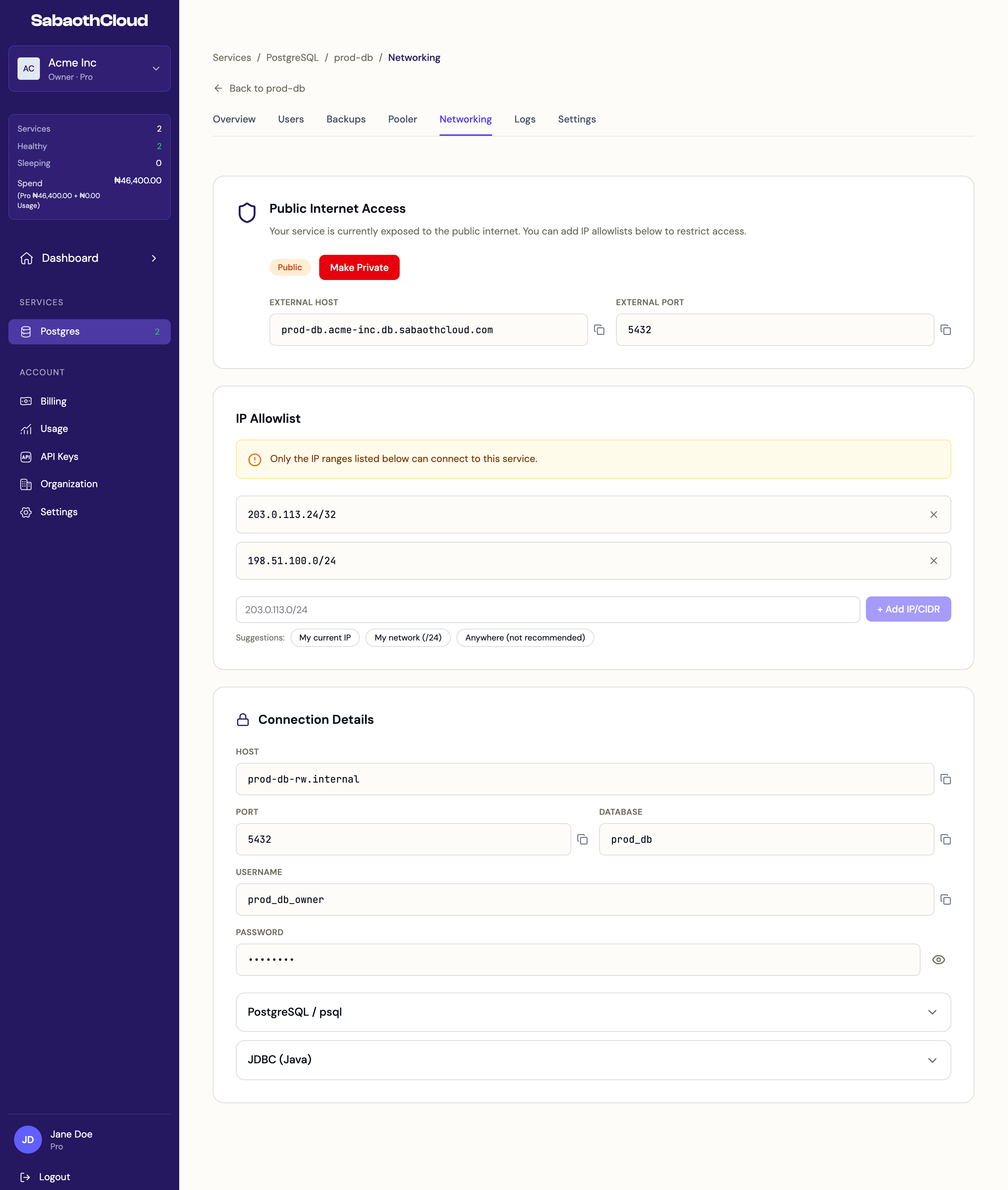
Connection details
The Connection Details section shows the Host, Port, Database, Username and Password for the service’s owner account. Click the eye icon to reveal the password, and the copy icon next to any field to copy it. Expand PostgreSQL / psql or JDBC (Java) for a ready-made connection string.Public internet access
New services are Private. They can only be reached from inside SabaothCloud’s network. To connect from your own machine, a server or another cloud:- Click Expose to Internet. The service must be Ready.
- Copy the External Host and External Port that appear.
- Add your IP address to the allowlist below.
IP allowlist
When a service is public, the allowlist controls which addresses can connect. To add an entry, type an IP address or CIDR range, such as203.0.113.24/32, and click Add IP/CIDR. Shortcuts are available:
To remove an entry, click the x next to it and confirm.
Troubleshooting connections
Connection times out
Connection times out
Check that the service is Ready, that it is exposed to the internet, and that your current IP address is on the allowlist. Your IP may have changed if you’re on a home or mobile network.
Password authentication failed
Password authentication failed
Check the username and password. If you rotated the password, update it in your application. See Database users.
SSL is required
SSL is required
Add
sslmode=require to your connection string.Too many connections
Too many connections
Lower your application’s pool size, raise the user’s connection limit, or turn on connection pooling.