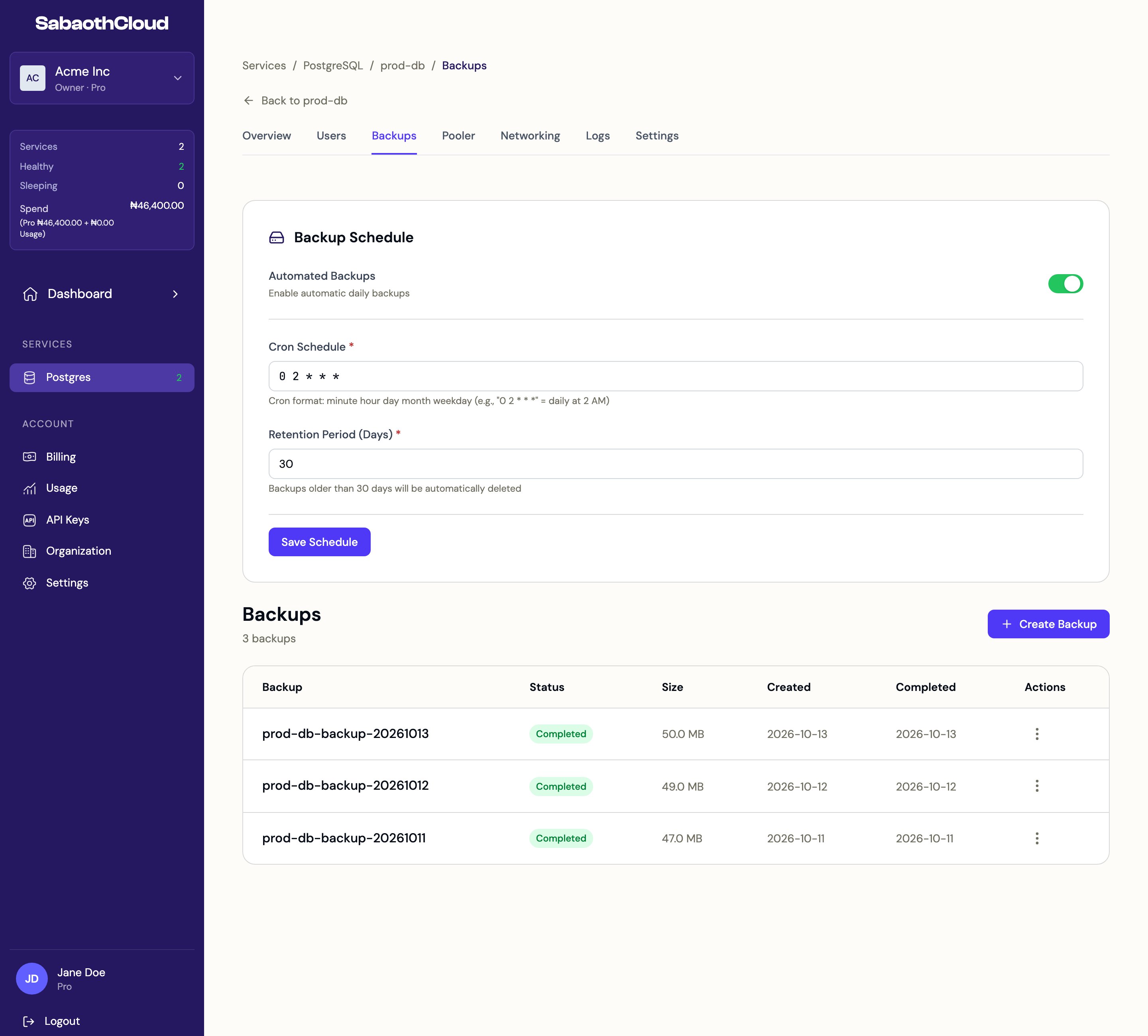
Backup schedule
Automated backups are on by default for new services.
Change the settings and click Save Schedule.
Create a backup now
Click Create Backup to take a backup straight away, for example before a migration or a large data change. It appears in the list with the status Running, then Completed.Restore from a backup
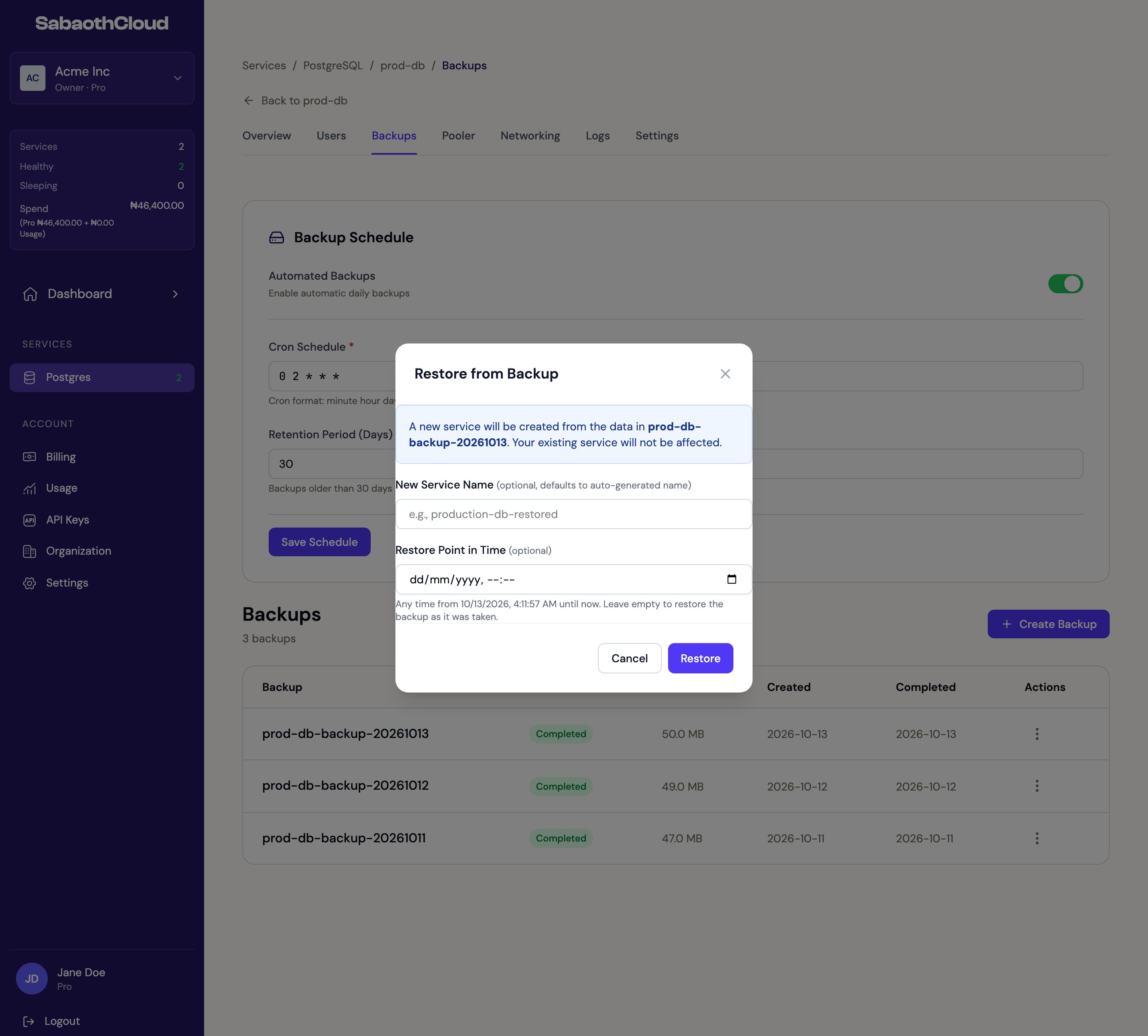
Restoring creates a new service from the backup. Your existing service is not changed.- Click the menu next to a Completed backup and choose Restore Backup.
- Optionally enter a New Service Name. If you leave it empty, a name is generated.
- Optionally choose a Restore Point in Time to restore the data as it was at that moment. It can be any time from when the backup started until now. Leave it empty to restore the backup as it was taken.
- Click Restore.
A restored service counts against your plan like any other service, so your plan needs a free service slot and enough resources for it.