Create an account
1
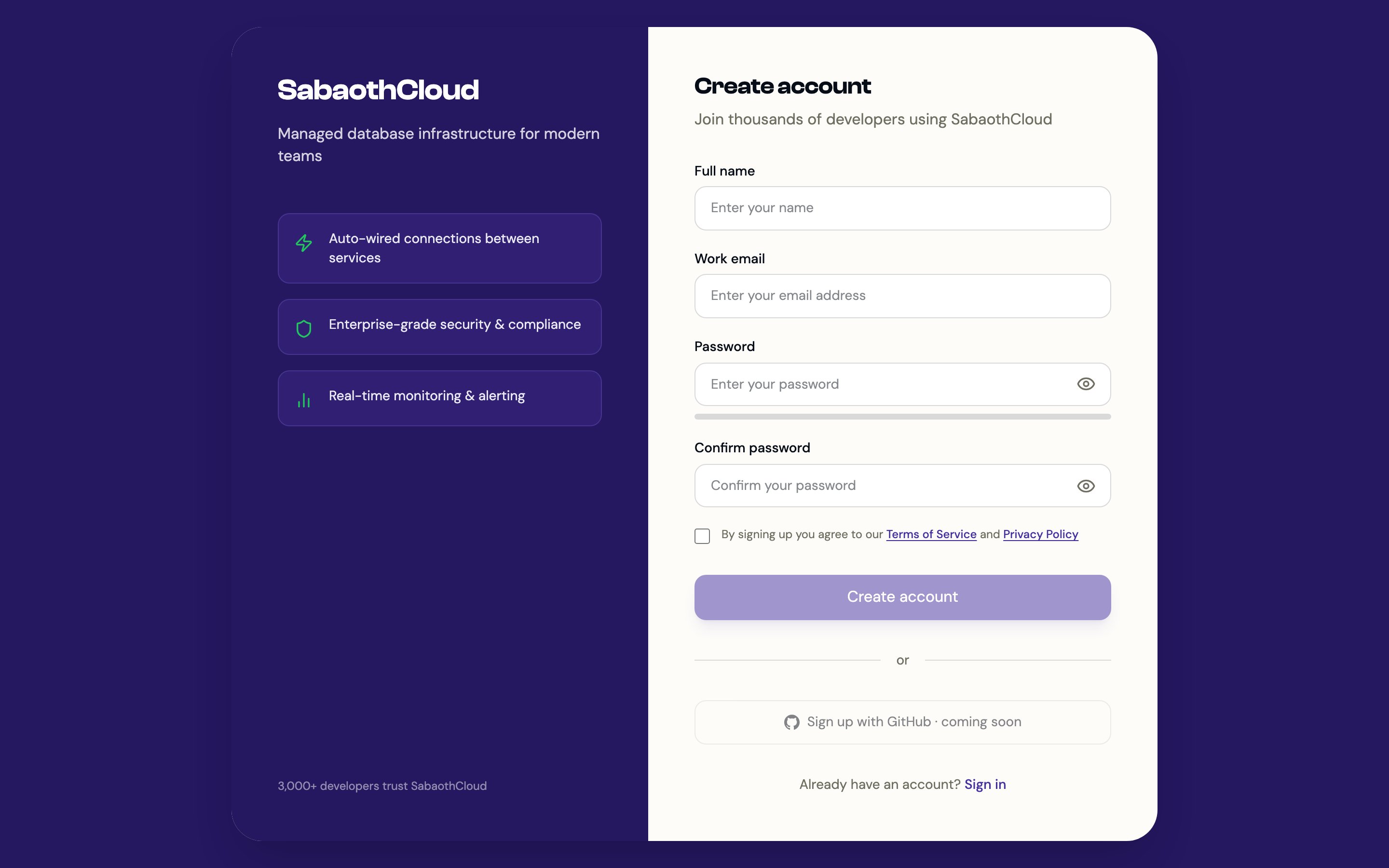
Open the sign-up page
Go to sabaothcloud.com/signup.
2
Enter your details
Fill in Full name, Work email, Password and Confirm password, then accept the Terms of Service and Privacy Policy.Your password must be at least 8 characters and include an uppercase letter, a lowercase letter, a number and a special character.
3
Click Create account
You are taken to plan selection for your personal organization. Choose a plan and add a payment method, or select Skip for now to go straight to the dashboard. You can activate a plan at any time from Billing.
4
Verify your email
Open the verification email and click the link. If it has expired, go to Settings > Profile and click Resend Verification Email.
Every account gets a personal organization automatically. To work with other people, create a separate organization and invite them. See Organizations.
Sign in
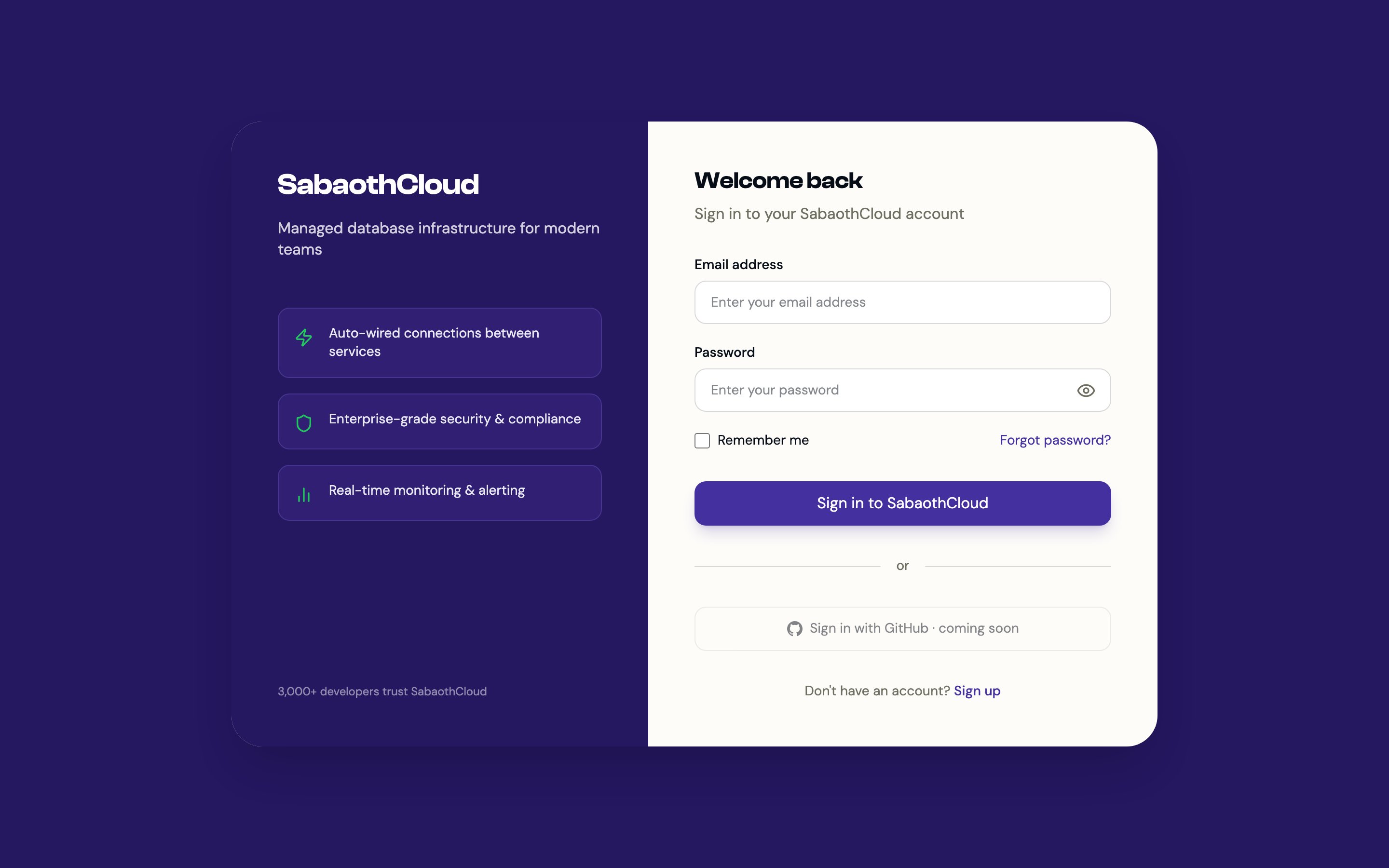
- Go to sabaothcloud.com/login.
- Enter your email address and password, then click Sign in to SabaothCloud.
- If two-step sign-in is on, enter the 6-digit code sent to your email and click Verify and sign in.
Reset your password
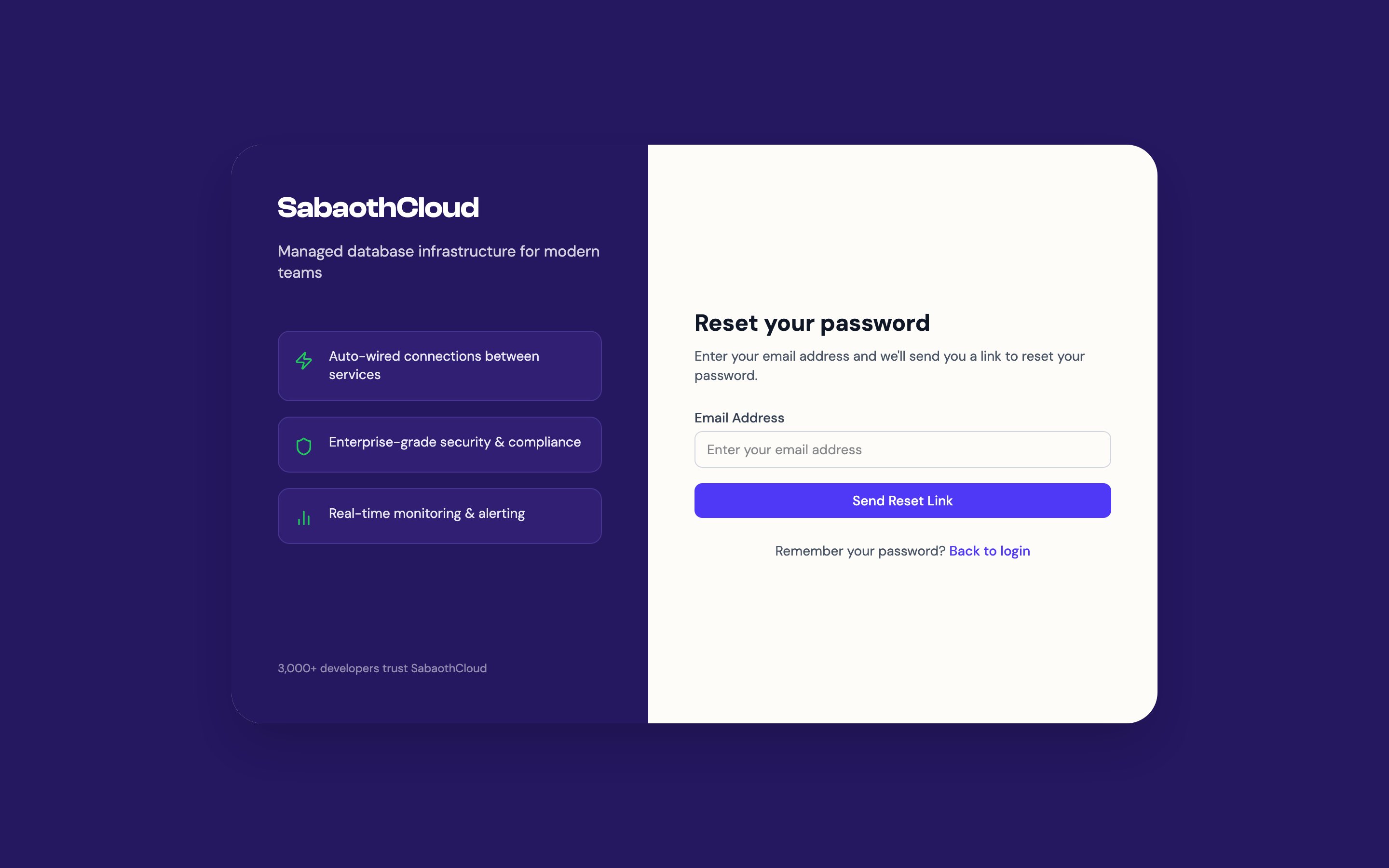
- On the sign-in page, click Forgot password?
- Enter your email address and submit the form.
- Open the reset email, click the link and choose a new password.
Two-step sign-in
Two-step sign-in adds a 6-digit code, sent to your email, after your password. A leaked password alone is then not enough to get into your account. To turn it on:- Go to Settings > Security.
- Under Two-step sign-in, click Turn on.
- Confirm your current password and click Send code.
- Enter the code from your email and click Turn on.