> ## Documentation Index
> Fetch the complete documentation index at: https://docs.sabaothcloud.com/llms.txt
> Use this file to discover all available pages before exploring further.
# Usage and Budget Controls
> Track your plan quota, see projected spend and set a monthly spending cap
Open **Usage** in the sidebar.
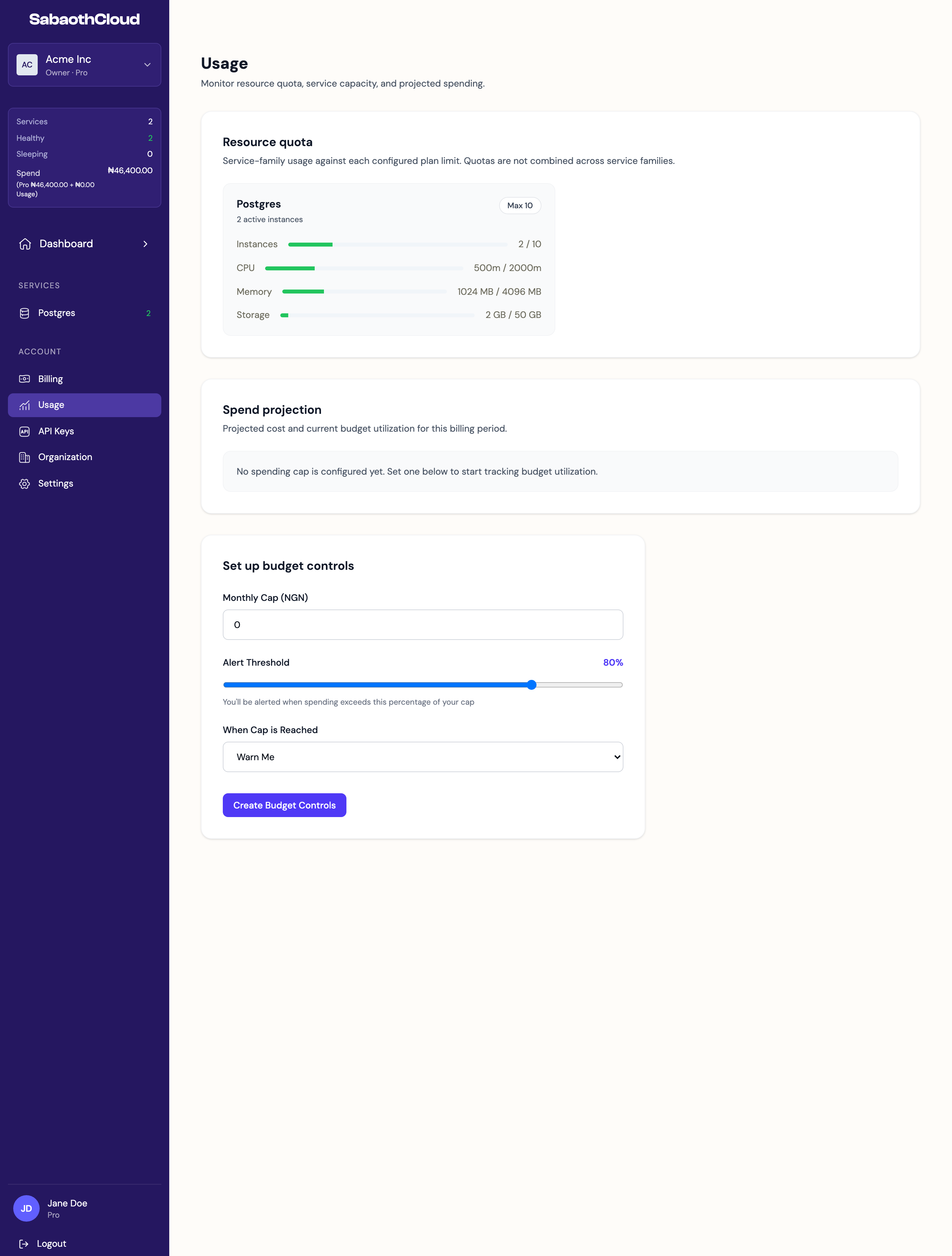 ## Resource quota
**Resource quota** shows what your PostgreSQL services use against your plan's limits:
| Meter | Measures |
| - | - |
| **Instances** | Services created, against the maximum your plan allows. |
| **CPU** | Total CPU allocated across services, in millicores. |
| **Memory** | Total memory allocated. |
| **Storage** | Total storage allocated. |
When a resource is close to its limit, a **Usage warnings** message appears at the top of the page. To get more room, [change your plan](/dashboard/billing#change-your-plan), or scale down or delete a service.
## Spend projection
Owners and Admins see the projected cost for the current billing period once a spending cap is set:
| Figure | Description |
| - | - |
| **Monthly Cap Utilization** | How much of the cap the projected cost uses. |
| **Projected Month Cost** | The expected total for the period. |
| **Monthly Cap** and **Remaining** | The cap you set and what's left of it. |
| **Base Amount** | Your plan's price for the period. |
| **Current Overages** | Usage beyond your plan so far. |
Until a cap is set, the section says no spending cap is configured.
## Set a spending cap
Owners and Admins can set a monthly spending cap. Under **Set up budget controls**:
1. Enter a **Monthly Cap** in your billing currency.
2. Set the **Alert Threshold**, from 10 to 100 percent. You're alerted when spending passes this share of the cap.
3. Choose what happens **When Cap is Reached**:
* **Warn Me**: you're notified and services keep running.
* **Block New Resources**: new services can't be created while spending is over the cap. Existing services keep running.
4. Click **Create Budget Controls**.
To change the cap later, update the fields and click **Save Budget Controls**.
This documentation is built and hosted on [Mintlify](https://mintlify.com), a developer documentation platform.
## Resource quota
**Resource quota** shows what your PostgreSQL services use against your plan's limits:
| Meter | Measures |
| - | - |
| **Instances** | Services created, against the maximum your plan allows. |
| **CPU** | Total CPU allocated across services, in millicores. |
| **Memory** | Total memory allocated. |
| **Storage** | Total storage allocated. |
When a resource is close to its limit, a **Usage warnings** message appears at the top of the page. To get more room, [change your plan](/dashboard/billing#change-your-plan), or scale down or delete a service.
## Spend projection
Owners and Admins see the projected cost for the current billing period once a spending cap is set:
| Figure | Description |
| - | - |
| **Monthly Cap Utilization** | How much of the cap the projected cost uses. |
| **Projected Month Cost** | The expected total for the period. |
| **Monthly Cap** and **Remaining** | The cap you set and what's left of it. |
| **Base Amount** | Your plan's price for the period. |
| **Current Overages** | Usage beyond your plan so far. |
Until a cap is set, the section says no spending cap is configured.
## Set a spending cap
Owners and Admins can set a monthly spending cap. Under **Set up budget controls**:
1. Enter a **Monthly Cap** in your billing currency.
2. Set the **Alert Threshold**, from 10 to 100 percent. You're alerted when spending passes this share of the cap.
3. Choose what happens **When Cap is Reached**:
* **Warn Me**: you're notified and services keep running.
* **Block New Resources**: new services can't be created while spending is over the cap. Existing services keep running.
4. Click **Create Budget Controls**.
To change the cap later, update the fields and click **Save Budget Controls**.
This documentation is built and hosted on [Mintlify](https://mintlify.com), a developer documentation platform.