> ## Documentation Index
> Fetch the complete documentation index at: https://docs.sabaothcloud.com/llms.txt
> Use this file to discover all available pages before exploring further.
# Networking and Connecting
> Get connection details, expose a service to the internet and restrict access by IP
Open a service and go to the **Networking** tab.
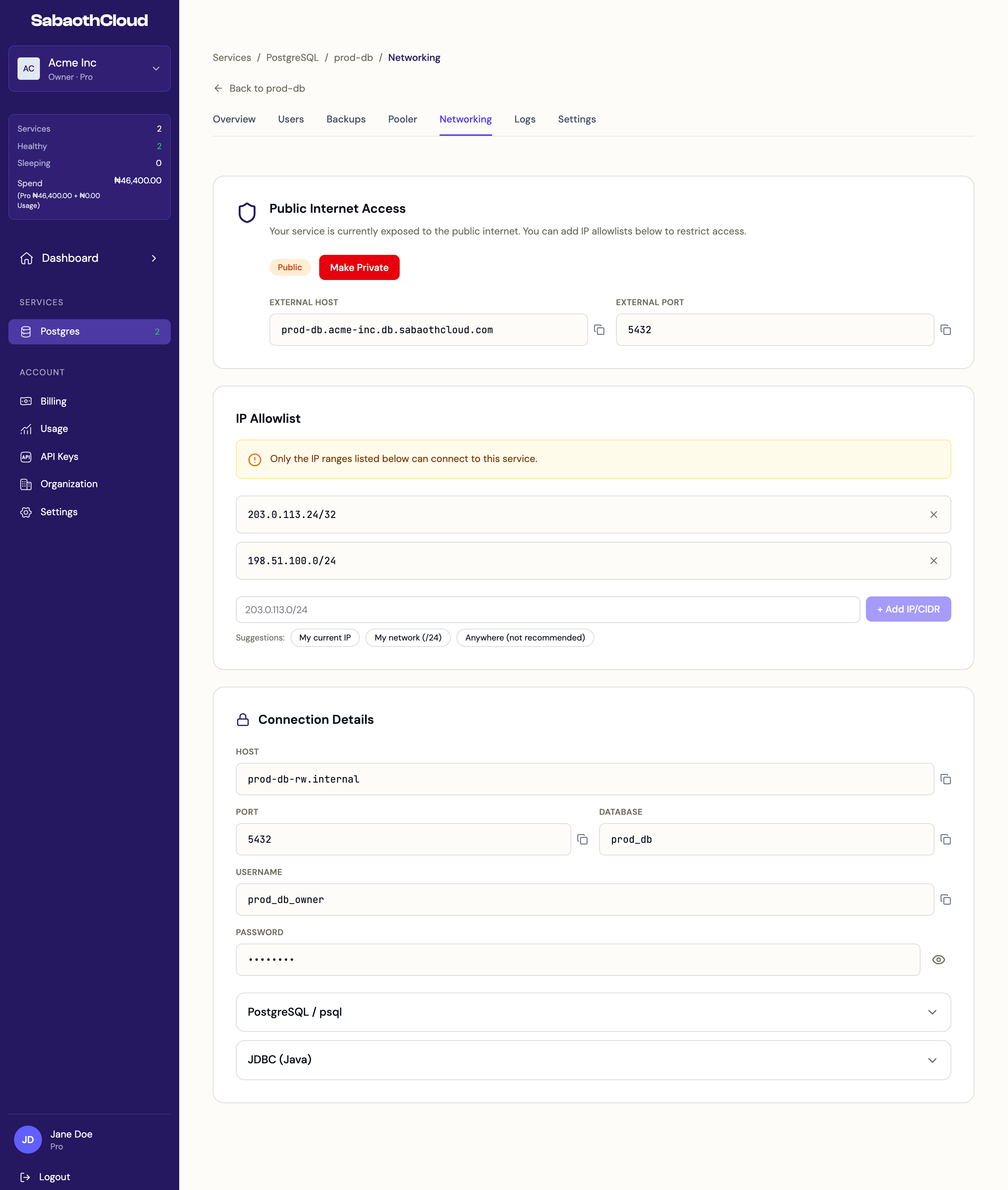 ## Connection details
The **Connection Details** section shows the **Host**, **Port**, **Database**, **Username** and **Password** for the service's owner account. Click the eye icon to reveal the password, and the copy icon next to any field to copy it.
Expand **PostgreSQL / psql** or **JDBC (Java)** for a ready-made connection string.
```bash theme={null}
psql "postgresql://USERNAME:PASSWORD@HOST:5432/DATABASE?sslmode=require"
```
For applications, create a dedicated user on the [Users](/dashboard/database-users) tab instead of using the owner account.
## Public internet access
New services are **Private**. They can only be reached from inside SabaothCloud's network.
To connect from your own machine, a server or another cloud:
1. Click **Expose to Internet**. The service must be **Ready**.
2. Copy the **External Host** and **External Port** that appear.
3. Add your IP address to the allowlist below.
To stop public access, click **Make Private** and confirm. The public address is removed, outside connections are closed and the IP allowlist is cleared.
## IP allowlist
When a service is public, the allowlist controls which addresses can connect.
An empty allowlist means **any** IP address on the internet can try to connect. Add at least one entry as soon as you expose a service.
To add an entry, type an IP address or CIDR range, such as `203.0.113.24/32`, and click **Add IP/CIDR**. Shortcuts are available:
| Suggestion | Adds |
| - | - |
| **My current IP** | Your current public IP address (`/32`). |
| **My network (/24)** | The 256-address range around your IP. |
| **Anywhere (not recommended)** | `0.0.0.0/0`, which allows every address. |
To remove an entry, click the **x** next to it and confirm.
## Troubleshooting connections
Check that the service is **Ready**, that it is exposed to the internet, and that your current IP address is on the allowlist. Your IP may have changed if you're on a home or mobile network.
Check the username and password. If you rotated the password, update it in your application. See [Database users](/dashboard/database-users#rotate-a-password).
Add `sslmode=require` to your connection string.
Lower your application's pool size, raise the user's connection limit, or turn on [connection pooling](/dashboard/connection-pooling).
This documentation is built and hosted on [Mintlify](https://mintlify.com), a developer documentation platform.
## Connection details
The **Connection Details** section shows the **Host**, **Port**, **Database**, **Username** and **Password** for the service's owner account. Click the eye icon to reveal the password, and the copy icon next to any field to copy it.
Expand **PostgreSQL / psql** or **JDBC (Java)** for a ready-made connection string.
```bash theme={null}
psql "postgresql://USERNAME:PASSWORD@HOST:5432/DATABASE?sslmode=require"
```
For applications, create a dedicated user on the [Users](/dashboard/database-users) tab instead of using the owner account.
## Public internet access
New services are **Private**. They can only be reached from inside SabaothCloud's network.
To connect from your own machine, a server or another cloud:
1. Click **Expose to Internet**. The service must be **Ready**.
2. Copy the **External Host** and **External Port** that appear.
3. Add your IP address to the allowlist below.
To stop public access, click **Make Private** and confirm. The public address is removed, outside connections are closed and the IP allowlist is cleared.
## IP allowlist
When a service is public, the allowlist controls which addresses can connect.
An empty allowlist means **any** IP address on the internet can try to connect. Add at least one entry as soon as you expose a service.
To add an entry, type an IP address or CIDR range, such as `203.0.113.24/32`, and click **Add IP/CIDR**. Shortcuts are available:
| Suggestion | Adds |
| - | - |
| **My current IP** | Your current public IP address (`/32`). |
| **My network (/24)** | The 256-address range around your IP. |
| **Anywhere (not recommended)** | `0.0.0.0/0`, which allows every address. |
To remove an entry, click the **x** next to it and confirm.
## Troubleshooting connections
Check that the service is **Ready**, that it is exposed to the internet, and that your current IP address is on the allowlist. Your IP may have changed if you're on a home or mobile network.
Check the username and password. If you rotated the password, update it in your application. See [Database users](/dashboard/database-users#rotate-a-password).
Add `sslmode=require` to your connection string.
Lower your application's pool size, raise the user's connection limit, or turn on [connection pooling](/dashboard/connection-pooling).
This documentation is built and hosted on [Mintlify](https://mintlify.com), a developer documentation platform.