> ## Documentation Index
> Fetch the complete documentation index at: https://docs.sabaothcloud.com/llms.txt
> Use this file to discover all available pages before exploring further.
# Members and Roles
> Invite teammates, assign roles and remove access
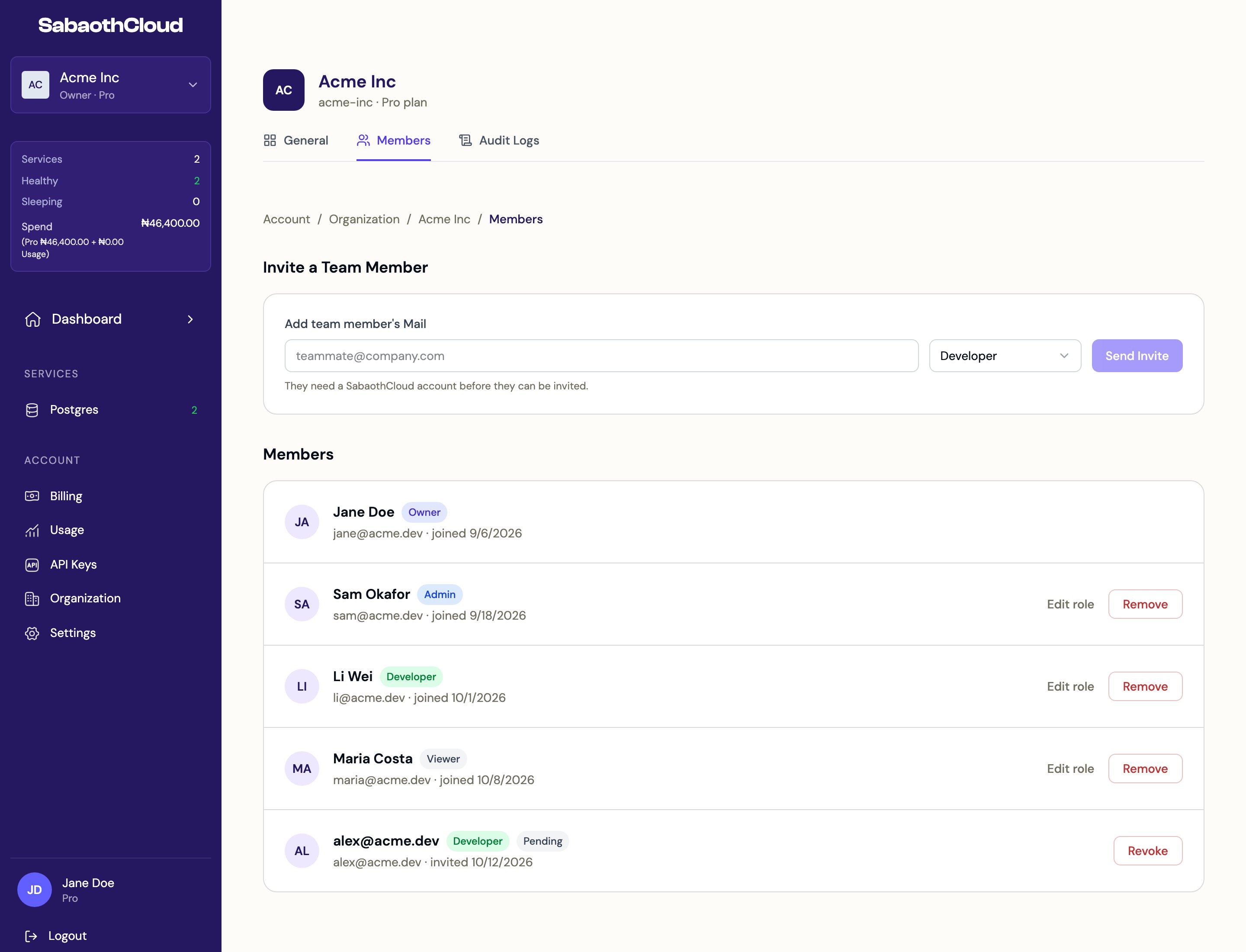
Go to **Organization** in the sidebar and open the **Members** tab.
 Personal organizations can't have other members. To work with a team, [create an organization](/dashboard/organizations#create-an-organization) and invite people to it.
## Roles
| Permission | Owner | Admin | Developer | Viewer |
| - | :-: | :-: | :-: | :-: |
| View services, users, backups and settings | Yes | Yes | Yes | Yes |
| Create, resize and delete services | Yes | Yes | Yes | |
| Manage database users, backups, pooling and networking | Yes | Yes | Yes | |
| Create API keys | Yes | Yes | Yes | |
| Invite and remove members, change roles | Yes | Yes | | |
| Manage billing and plans | Yes | Yes | | |
| Edit organization details | Yes | Yes | | |
| View audit logs and recent activity | Yes | Yes | | |
| Transfer ownership and delete the organization | Yes | | | |
Each organization has exactly one Owner. To hand over the Owner role, see [Transfer ownership](/dashboard/organizations#transfer-ownership).
## Invite a member
Owners and Admins can invite people.
1. Under **Invite a Team Member**, enter the person's email address.
2. Choose a role: **Viewer**, **Developer** or **Admin**. Developer is selected by default.
3. Click **Send Invite**.
The person must already have a SabaothCloud account. They appear in the list as **Pending** until they accept. You can't give someone a role higher than your own.
## Change a member's role
Click **Edit role** next to the member, choose the new role and save.
## Remove a member or revoke an invitation
Click **Remove** next to a member, or **Revoke** next to a pending invitation, then confirm. The person loses access to the organization's services straight away.
## Leave the organization
To remove yourself, see [Leave an organization](/dashboard/organizations#leave-an-organization).
This documentation is built and hosted on [Mintlify](https://mintlify.com), a developer documentation platform.
Personal organizations can't have other members. To work with a team, [create an organization](/dashboard/organizations#create-an-organization) and invite people to it.
## Roles
| Permission | Owner | Admin | Developer | Viewer |
| - | :-: | :-: | :-: | :-: |
| View services, users, backups and settings | Yes | Yes | Yes | Yes |
| Create, resize and delete services | Yes | Yes | Yes | |
| Manage database users, backups, pooling and networking | Yes | Yes | Yes | |
| Create API keys | Yes | Yes | Yes | |
| Invite and remove members, change roles | Yes | Yes | | |
| Manage billing and plans | Yes | Yes | | |
| Edit organization details | Yes | Yes | | |
| View audit logs and recent activity | Yes | Yes | | |
| Transfer ownership and delete the organization | Yes | | | |
Each organization has exactly one Owner. To hand over the Owner role, see [Transfer ownership](/dashboard/organizations#transfer-ownership).
## Invite a member
Owners and Admins can invite people.
1. Under **Invite a Team Member**, enter the person's email address.
2. Choose a role: **Viewer**, **Developer** or **Admin**. Developer is selected by default.
3. Click **Send Invite**.
The person must already have a SabaothCloud account. They appear in the list as **Pending** until they accept. You can't give someone a role higher than your own.
## Change a member's role
Click **Edit role** next to the member, choose the new role and save.
## Remove a member or revoke an invitation
Click **Remove** next to a member, or **Revoke** next to a pending invitation, then confirm. The person loses access to the organization's services straight away.
## Leave the organization
To remove yourself, see [Leave an organization](/dashboard/organizations#leave-an-organization).
This documentation is built and hosted on [Mintlify](https://mintlify.com), a developer documentation platform.