> ## Documentation Index
> Fetch the complete documentation index at: https://docs.sabaothcloud.com/llms.txt
> Use this file to discover all available pages before exploring further.
# Managing Services
> View, resize, delete and restore your PostgreSQL services
## The Postgres page
Open **Postgres** in the sidebar to see every PostgreSQL service in the organization.
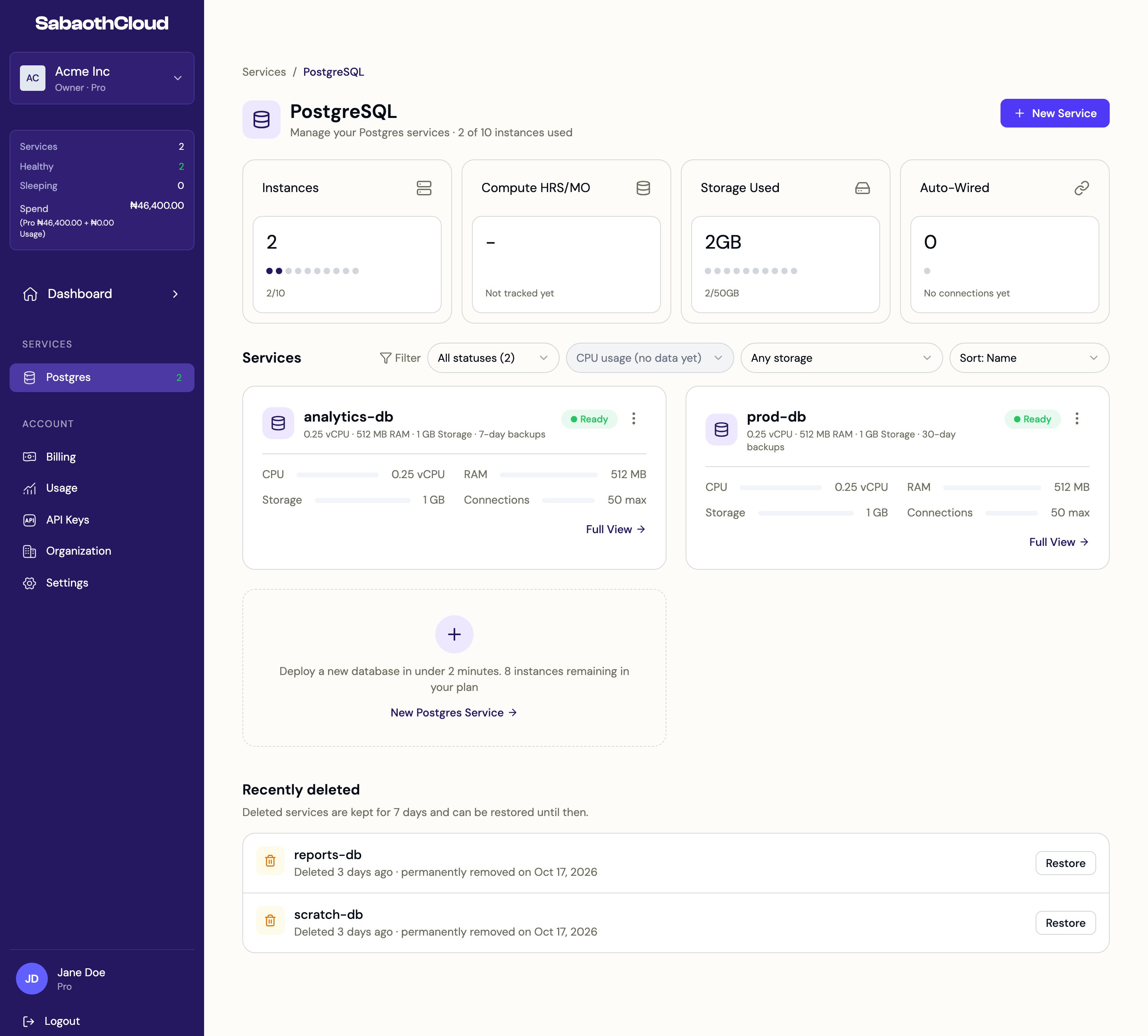 The cards at the top show **Instances** used against your plan and **Storage Used**. Each service card shows its size, backup retention, status and current resource usage. Click **Full View** to open a service.
Use the filters above the list to narrow it down by status, CPU usage or storage size, and the sort menu to order it by name, newest, CPU or storage.
### Service actions menu
Click the three-dot menu on a service card for quick access to its pages.
The cards at the top show **Instances** used against your plan and **Storage Used**. Each service card shows its size, backup retention, status and current resource usage. Click **Full View** to open a service.
Use the filters above the list to narrow it down by status, CPU usage or storage size, and the sort menu to order it by name, newest, CPU or storage.
### Service actions menu
Click the three-dot menu on a service card for quick access to its pages.
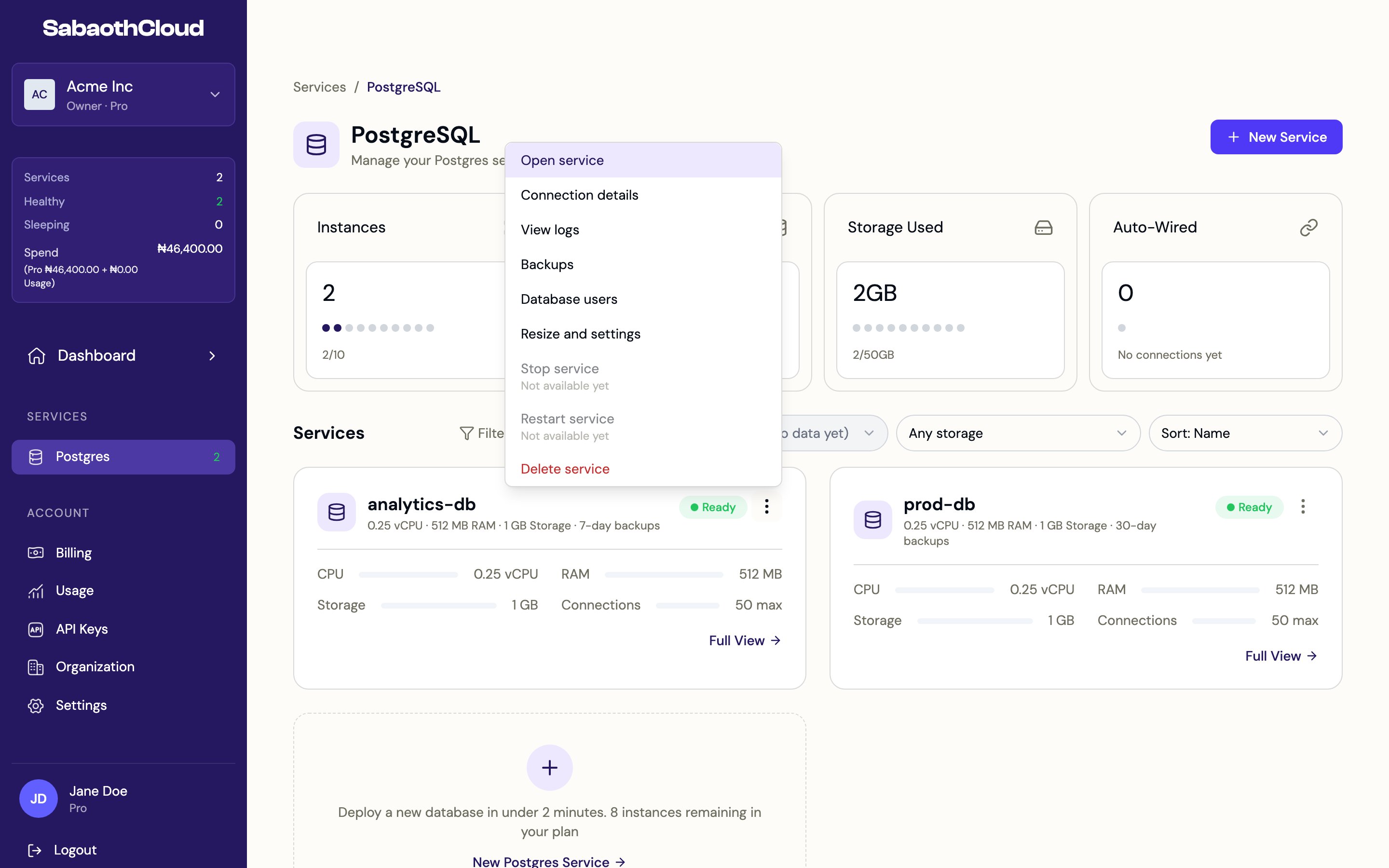 | Action | Opens |
| - | - |
| **Open service** | The service's Overview tab. |
| **Connection details** | The [Networking](/dashboard/networking) tab. |
| **View logs** | The [Logs](/dashboard/logs) tab. |
| **Backups** | The [Backups](/dashboard/backups) tab. |
| **Database users** | The [Users](/dashboard/database-users) tab. |
| **Resize and settings** | The Settings tab. |
| **Delete service** | The delete confirmation. See [Delete a service](#delete-a-service). |
## Service overview
Each service has seven tabs: **Overview**, **Users**, **Backups**, **Pooler**, **Networking**, **Logs** and **Settings**.
| Action | Opens |
| - | - |
| **Open service** | The service's Overview tab. |
| **Connection details** | The [Networking](/dashboard/networking) tab. |
| **View logs** | The [Logs](/dashboard/logs) tab. |
| **Backups** | The [Backups](/dashboard/backups) tab. |
| **Database users** | The [Users](/dashboard/database-users) tab. |
| **Resize and settings** | The Settings tab. |
| **Delete service** | The delete confirmation. See [Delete a service](#delete-a-service). |
## Service overview
Each service has seven tabs: **Overview**, **Users**, **Backups**, **Pooler**, **Networking**, **Logs** and **Settings**.
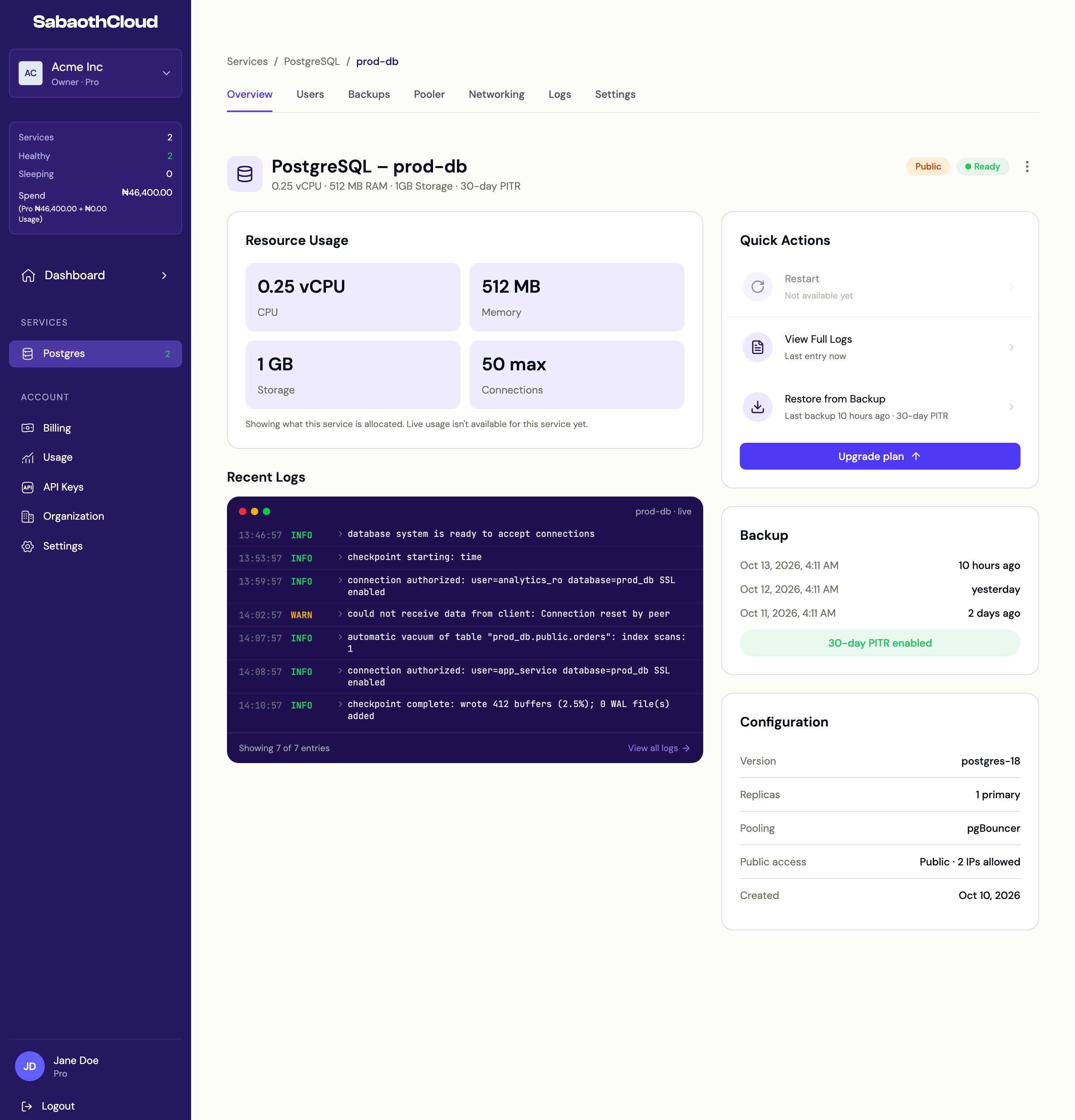 The Overview tab shows:
* **Resource Usage**: CPU, memory, storage and the maximum number of connections.
* **Recent Logs**: the latest PostgreSQL log entries. Click **View all logs** for the full log view.
* **Quick Actions**: shortcuts to the full logs and to restoring from a backup.
* **Backup**: the most recent backups and the point-in-time recovery window.
* **Configuration**: PostgreSQL version, replicas, whether pooling is on, public access and creation date.
A **Public** badge next to the status means the service accepts connections from the internet. See [Networking and connecting](/dashboard/networking).
## Service status
| Status | Meaning |
| - | - |
| **Ready** | The service is running and accepting connections. |
| **Queued** / **Provisioning** | The service is being created. |
| **Scaling** / **Updating** | A resize or configuration change is being applied. |
| **Backing up** / **Restoring** / **Recovering** | A backup or restore is in progress. |
| **Failing over** | A standby is taking over from the primary. |
| **Failed** | The service isn't serving connections. Delete it, or contact support if you need the data recovered. |
| **Deleting** | The service is being removed. |
While a service is changing, the page checks for updates every 15 seconds and most changes are paused until it is **Ready** again.
## Resize a service
Open the service's **Settings** tab.
The Overview tab shows:
* **Resource Usage**: CPU, memory, storage and the maximum number of connections.
* **Recent Logs**: the latest PostgreSQL log entries. Click **View all logs** for the full log view.
* **Quick Actions**: shortcuts to the full logs and to restoring from a backup.
* **Backup**: the most recent backups and the point-in-time recovery window.
* **Configuration**: PostgreSQL version, replicas, whether pooling is on, public access and creation date.
A **Public** badge next to the status means the service accepts connections from the internet. See [Networking and connecting](/dashboard/networking).
## Service status
| Status | Meaning |
| - | - |
| **Ready** | The service is running and accepting connections. |
| **Queued** / **Provisioning** | The service is being created. |
| **Scaling** / **Updating** | A resize or configuration change is being applied. |
| **Backing up** / **Restoring** / **Recovering** | A backup or restore is in progress. |
| **Failing over** | A standby is taking over from the primary. |
| **Failed** | The service isn't serving connections. Delete it, or contact support if you need the data recovered. |
| **Deleting** | The service is being removed. |
While a service is changing, the page checks for updates every 15 seconds and most changes are paused until it is **Ready** again.
## Resize a service
Open the service's **Settings** tab.
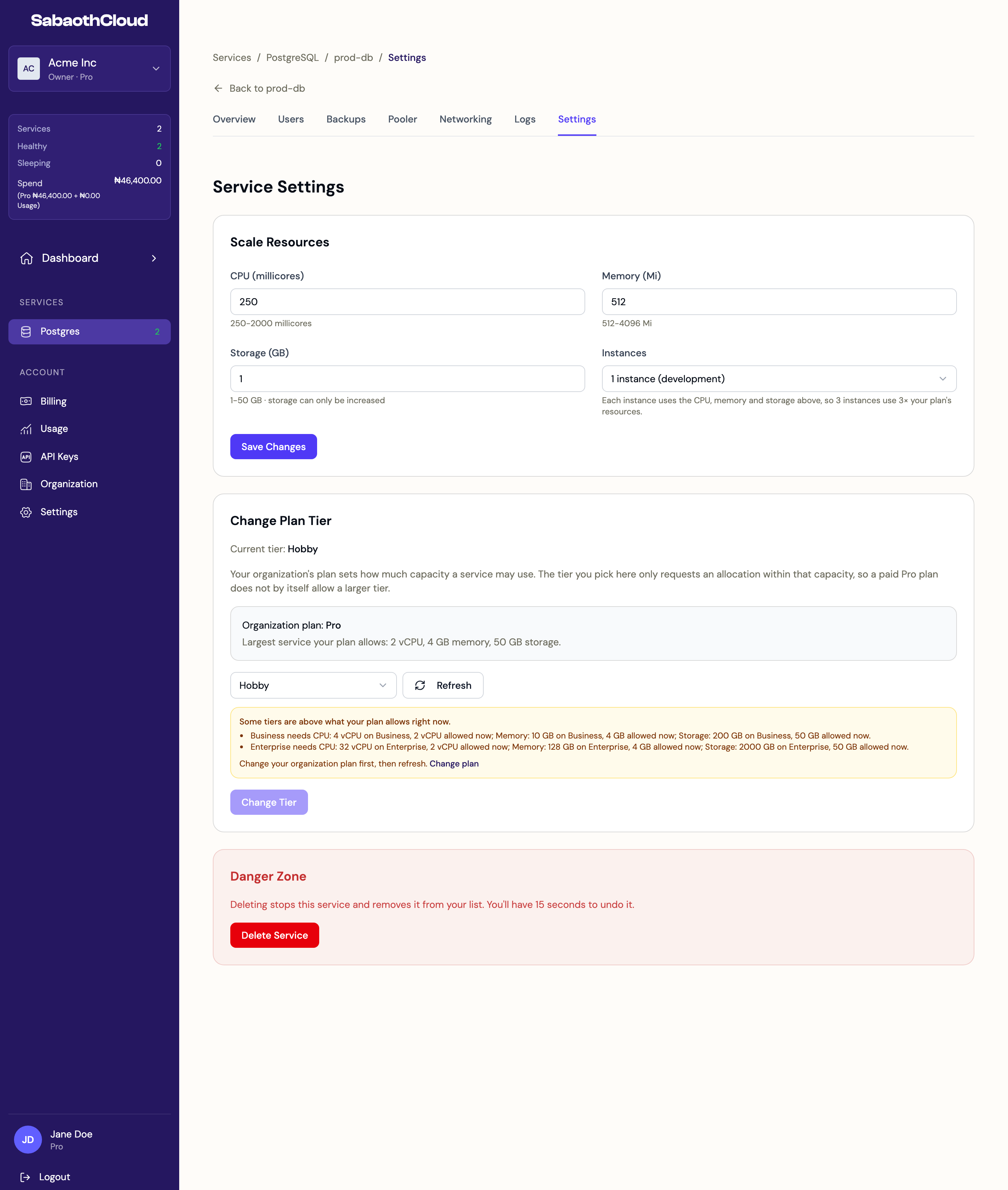 Under **Scale Resources**, change any of:
| Field | Notes |
| - | - |
| **CPU (millicores)** | 1000 millicores is 1 vCPU. The allowed range is shown under the field. |
| **Memory (Mi)** | In 512 Mi steps. |
| **Storage (GB)** | Can only be increased. |
| **Instances** | **1 instance (development)** or **3 instances (high availability)**. Three instances use three times the resources. |
Click **Save Changes**. The service shows **Scaling** until the change is applied.
The largest size you can choose is set by your organization's plan. To go bigger, [change your plan](/dashboard/billing#change-your-plan) first.
## Change a service's tier
Under **Change Plan Tier**, the current tier and your organization's plan are shown, along with the largest service your plan allows. Choose a tier and click **Change Tier**, then confirm.
Tiers that are larger than your plan allows are disabled and listed with what they need. Change your organization's plan first, then click **Refresh**.
## Delete a service
Deleting a service stops it and disconnects every client. Back up anything you need first.
1. On the **Settings** tab, scroll to **Danger Zone** and click **Delete Service**. You can also use **Delete service** in the actions menu.
2. If connection pooling is on, click **Turn off pooling** in the dialog and wait for it to finish.
3. Click **Delete Service** to confirm.
For 15 seconds afterwards you can click **Undo** in the confirmation message to bring the service straight back.
## Restore a deleted service
Deleted services are kept for 7 days and can be restored until then.
* On the **Postgres** page, find the service under **Recently deleted** and click **Restore**.
* Or open the deleted service and click **Restore Service** on its Overview tab.
Each entry shows the date it will be permanently removed. After that date the service and its data can't be recovered.
Right after a delete, restore may wait a moment while the delete finishes. The button shows **Waiting for delete...** and completes on its own.
This documentation is built and hosted on [Mintlify](https://mintlify.com), a developer documentation platform.
Under **Scale Resources**, change any of:
| Field | Notes |
| - | - |
| **CPU (millicores)** | 1000 millicores is 1 vCPU. The allowed range is shown under the field. |
| **Memory (Mi)** | In 512 Mi steps. |
| **Storage (GB)** | Can only be increased. |
| **Instances** | **1 instance (development)** or **3 instances (high availability)**. Three instances use three times the resources. |
Click **Save Changes**. The service shows **Scaling** until the change is applied.
The largest size you can choose is set by your organization's plan. To go bigger, [change your plan](/dashboard/billing#change-your-plan) first.
## Change a service's tier
Under **Change Plan Tier**, the current tier and your organization's plan are shown, along with the largest service your plan allows. Choose a tier and click **Change Tier**, then confirm.
Tiers that are larger than your plan allows are disabled and listed with what they need. Change your organization's plan first, then click **Refresh**.
## Delete a service
Deleting a service stops it and disconnects every client. Back up anything you need first.
1. On the **Settings** tab, scroll to **Danger Zone** and click **Delete Service**. You can also use **Delete service** in the actions menu.
2. If connection pooling is on, click **Turn off pooling** in the dialog and wait for it to finish.
3. Click **Delete Service** to confirm.
For 15 seconds afterwards you can click **Undo** in the confirmation message to bring the service straight back.
## Restore a deleted service
Deleted services are kept for 7 days and can be restored until then.
* On the **Postgres** page, find the service under **Recently deleted** and click **Restore**.
* Or open the deleted service and click **Restore Service** on its Overview tab.
Each entry shows the date it will be permanently removed. After that date the service and its data can't be recovered.
Right after a delete, restore may wait a moment while the delete finishes. The button shows **Waiting for delete...** and completes on its own.
This documentation is built and hosted on [Mintlify](https://mintlify.com), a developer documentation platform.