> ## Documentation Index
> Fetch the complete documentation index at: https://docs.sabaothcloud.com/llms.txt
> Use this file to discover all available pages before exploring further.
# Creating a Service
> Create a managed PostgreSQL service in three steps
A service is a managed PostgreSQL instance. Creating one takes three steps: name and resources, version and backups, then review.
You need the Owner, Admin or Developer role to create a service, and your organization's plan must have room for it.
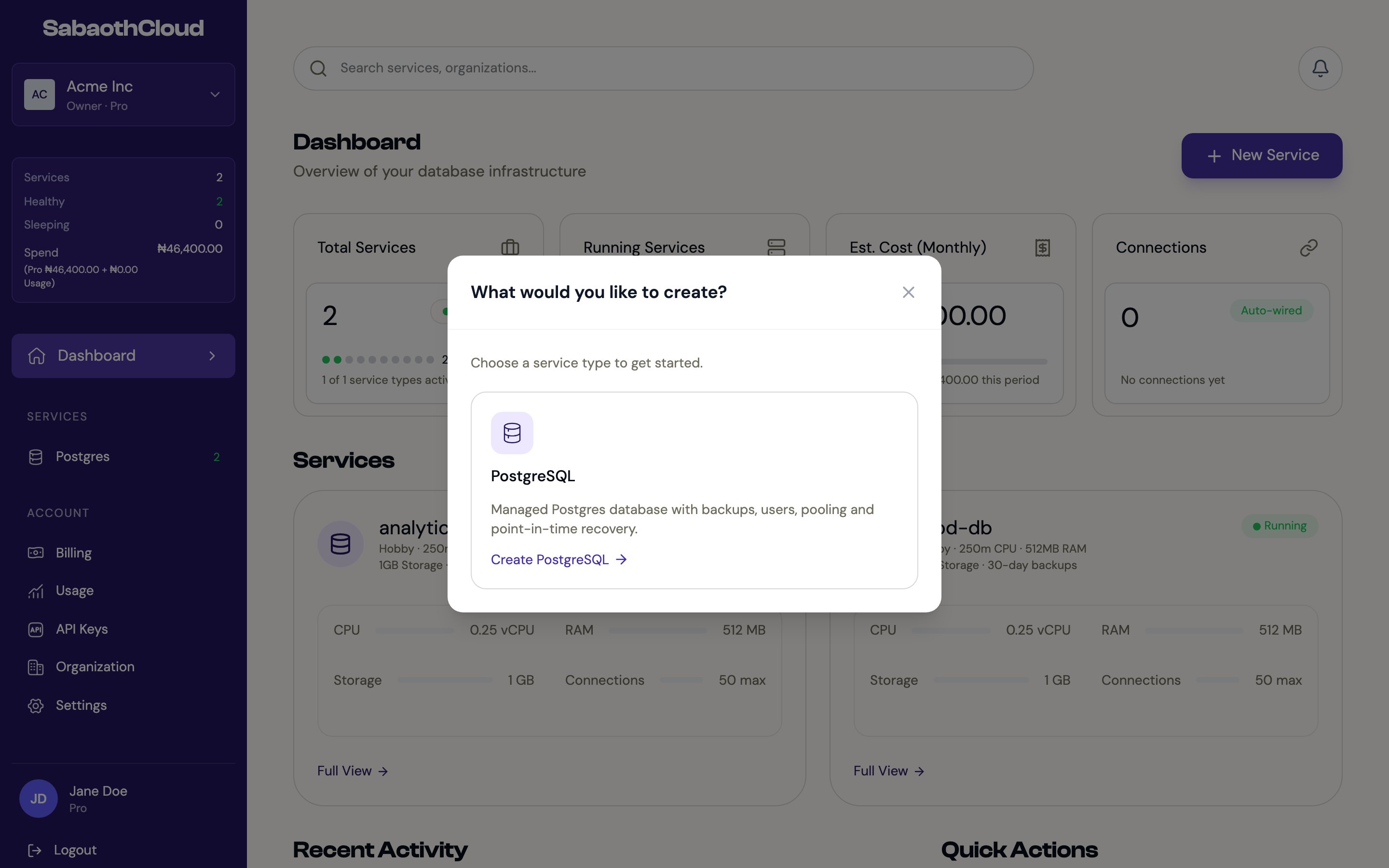
## Start creating a service
Use any of these:
* On the dashboard, click **New Service** and choose **PostgreSQL**.
* In the sidebar, open **Postgres** and click **New Service**.
* Search for **New Postgres service** in the search bar.
 ## Step 1: Name and resources
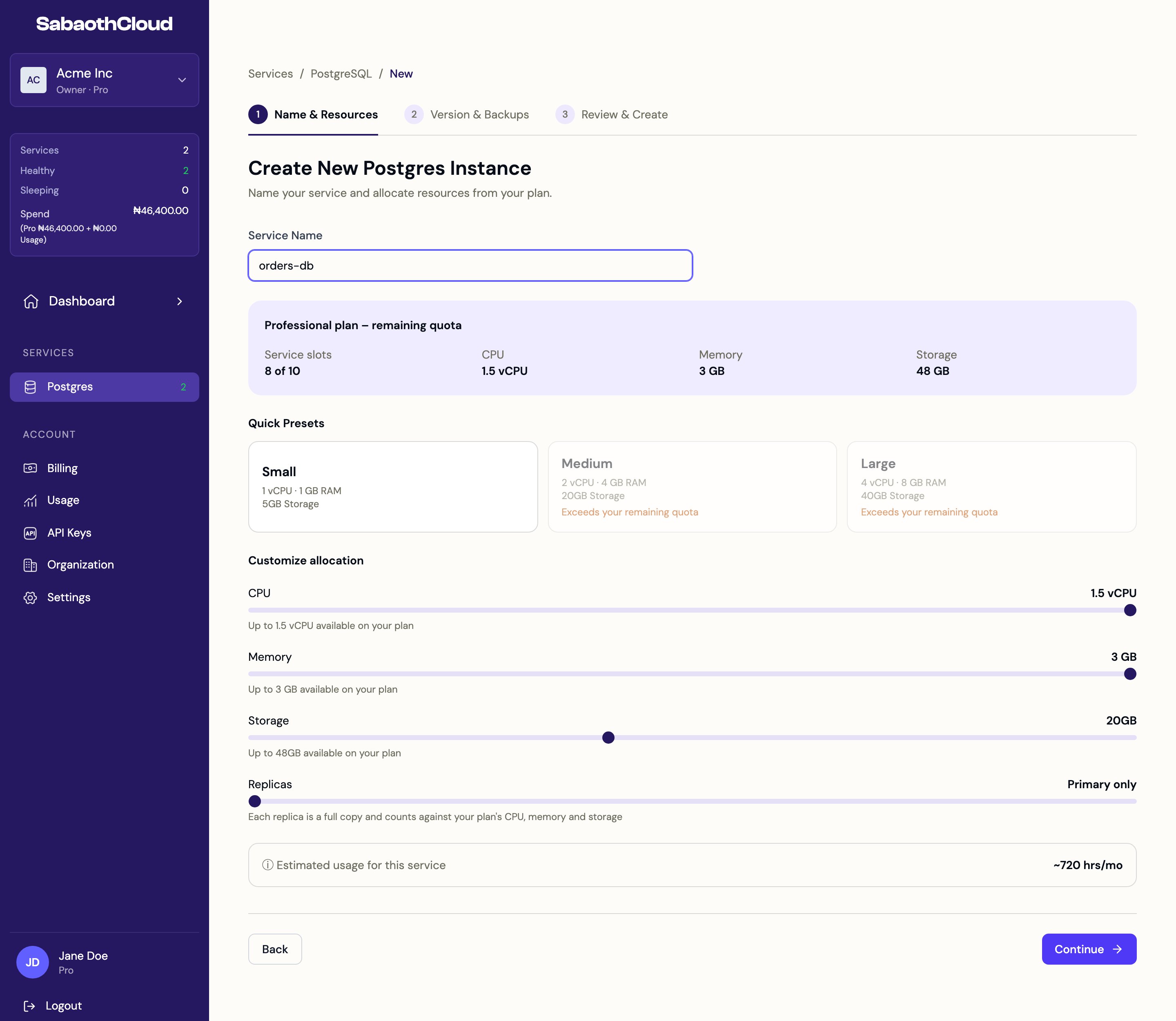 ### Service name
Enter a **Service Name**. It must:
* Be 3 to 63 characters long
* Use lowercase letters, numbers and hyphens
* Start with a letter and end with a letter or number
For example: `orders-db`, `prod-db`, `analytics-db`.
### Remaining quota
The panel under the name shows what is left on your plan: **Service slots**, **CPU**, **Memory** and **Storage**. The sliders below never go past these limits.
### Quick presets
| Preset | CPU | Memory | Storage |
| - | - | - | - |
| **Small** | 1 vCPU | 1 GB | 5 GB |
| **Medium** | 2 vCPU | 4 GB | 20 GB |
| **Large** | 4 vCPU | 8 GB | 40 GB |
A preset that doesn't fit your remaining quota is greyed out and marked **Exceeds your remaining quota**.
### Customize allocation
Use the sliders to set exactly what you need:
| Setting | Notes |
| - | - |
| **CPU** | From 0.25 vCPU up to what your plan allows. |
| **Memory** | From 512 MB, in 512 MB steps. |
| **Storage** | From 1 GB. Storage can be increased later but never reduced. |
| **Replicas** | **Primary only**, or **1 primary + 2 standbys** for high availability. |
Each replica is a full copy of the service, so a service with standbys uses three times the CPU, memory and storage shown on the sliders.
Click **Continue**.
## Step 2: Version and backups
### Service name
Enter a **Service Name**. It must:
* Be 3 to 63 characters long
* Use lowercase letters, numbers and hyphens
* Start with a letter and end with a letter or number
For example: `orders-db`, `prod-db`, `analytics-db`.
### Remaining quota
The panel under the name shows what is left on your plan: **Service slots**, **CPU**, **Memory** and **Storage**. The sliders below never go past these limits.
### Quick presets
| Preset | CPU | Memory | Storage |
| - | - | - | - |
| **Small** | 1 vCPU | 1 GB | 5 GB |
| **Medium** | 2 vCPU | 4 GB | 20 GB |
| **Large** | 4 vCPU | 8 GB | 40 GB |
A preset that doesn't fit your remaining quota is greyed out and marked **Exceeds your remaining quota**.
### Customize allocation
Use the sliders to set exactly what you need:
| Setting | Notes |
| - | - |
| **CPU** | From 0.25 vCPU up to what your plan allows. |
| **Memory** | From 512 MB, in 512 MB steps. |
| **Storage** | From 1 GB. Storage can be increased later but never reduced. |
| **Replicas** | **Primary only**, or **1 primary + 2 standbys** for high availability. |
Each replica is a full copy of the service, so a service with standbys uses three times the CPU, memory and storage shown on the sliders.
Click **Continue**.
## Step 2: Version and backups
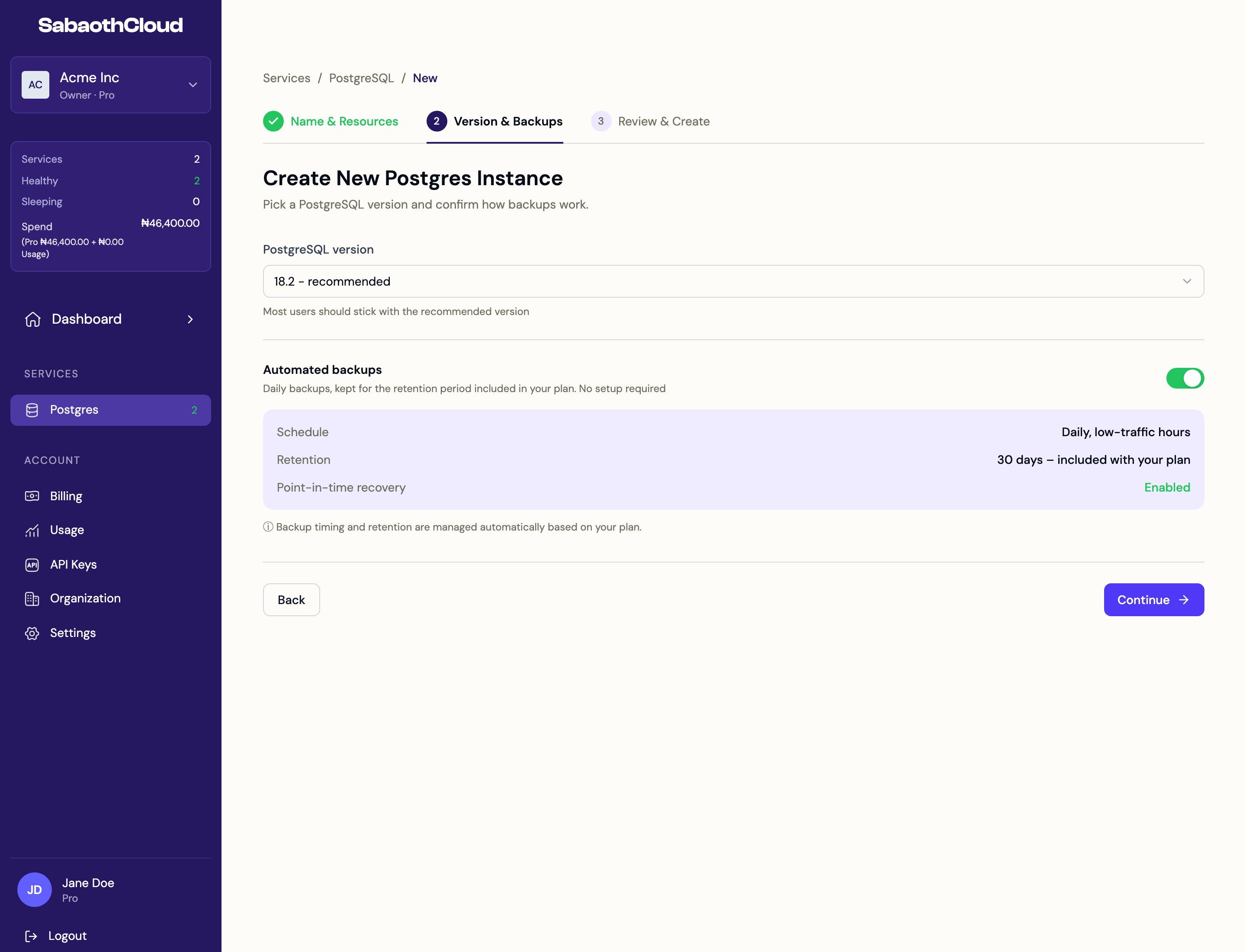 **PostgreSQL version**: choose from 18, 17, 16, 15 and 14. The latest version is marked as recommended, and most services should use it.
**Automated backups**: on by default. Backups run daily during low-traffic hours and are kept for the retention period included in your plan. Point-in-time recovery is available within that window. You can change the schedule later on the service's [Backups](/dashboard/backups) tab.
Click **Continue**.
## Step 3: Review and create
**PostgreSQL version**: choose from 18, 17, 16, 15 and 14. The latest version is marked as recommended, and most services should use it.
**Automated backups**: on by default. Backups run daily during low-traffic hours and are kept for the retention period included in your plan. Point-in-time recovery is available within that window. You can change the schedule later on the service's [Backups](/dashboard/backups) tab.
Click **Continue**.
## Step 3: Review and create
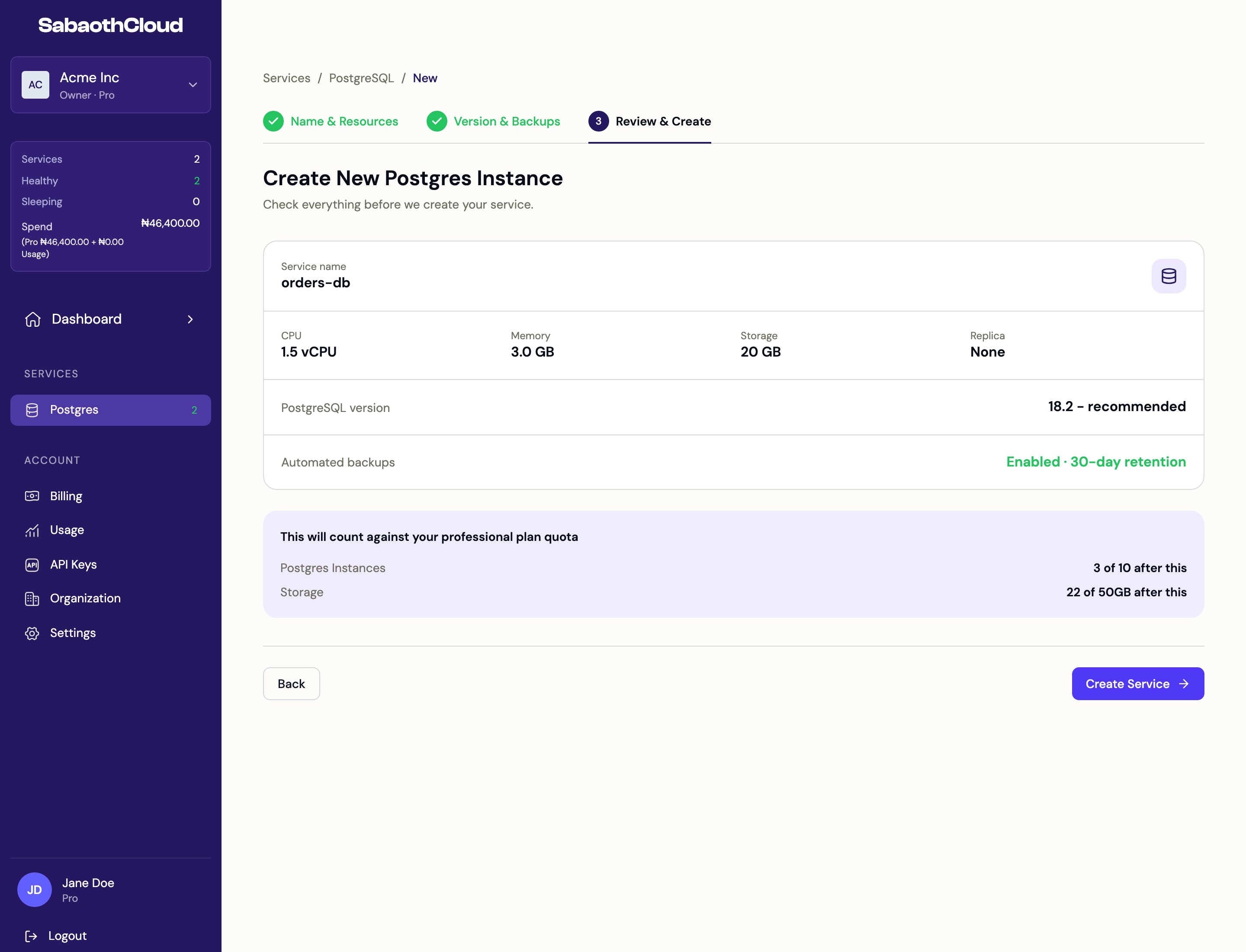 Check the summary and the quota impact at the bottom, which shows how many services and how much storage your organization will be using afterwards. Click **Create Service**.
You are taken to the new service's overview page.
## While the service starts
A new service shows **Provisioning** while it is set up, which usually takes a couple of minutes. The page checks for updates every 15 seconds. Changes to the service are paused until it shows **Ready**.
If a service stays in one state much longer than expected, a banner says so, with **Refresh status**, **View logs** and **Contact support** options.
## If your plan doesn't have room
If the service is larger than what's left on your plan, the wizard explains which resource is short and offers two options:
* **Upgrade plan** opens the plan selection page.
* **Adjust resources** returns to step 1 so you can choose a smaller size.
You can also free up room by scaling down or deleting another service.
## Next steps
Add a login for your application.
Copy connection details and allow your IP address.
This documentation is built and hosted on [Mintlify](https://mintlify.com), a developer documentation platform.
Check the summary and the quota impact at the bottom, which shows how many services and how much storage your organization will be using afterwards. Click **Create Service**.
You are taken to the new service's overview page.
## While the service starts
A new service shows **Provisioning** while it is set up, which usually takes a couple of minutes. The page checks for updates every 15 seconds. Changes to the service are paused until it shows **Ready**.
If a service stays in one state much longer than expected, a banner says so, with **Refresh status**, **View logs** and **Contact support** options.
## If your plan doesn't have room
If the service is larger than what's left on your plan, the wizard explains which resource is short and offers two options:
* **Upgrade plan** opens the plan selection page.
* **Adjust resources** returns to step 1 so you can choose a smaller size.
You can also free up room by scaling down or deleting another service.
## Next steps
Add a login for your application.
Copy connection details and allow your IP address.
This documentation is built and hosted on [Mintlify](https://mintlify.com), a developer documentation platform.