> ## Documentation Index
> Fetch the complete documentation index at: https://docs.sabaothcloud.com/llms.txt
> Use this file to discover all available pages before exploring further.
# Backups and Restore
> Schedule automated backups, take on-demand backups and restore to a point in time
Open a service and go to the **Backups** tab.
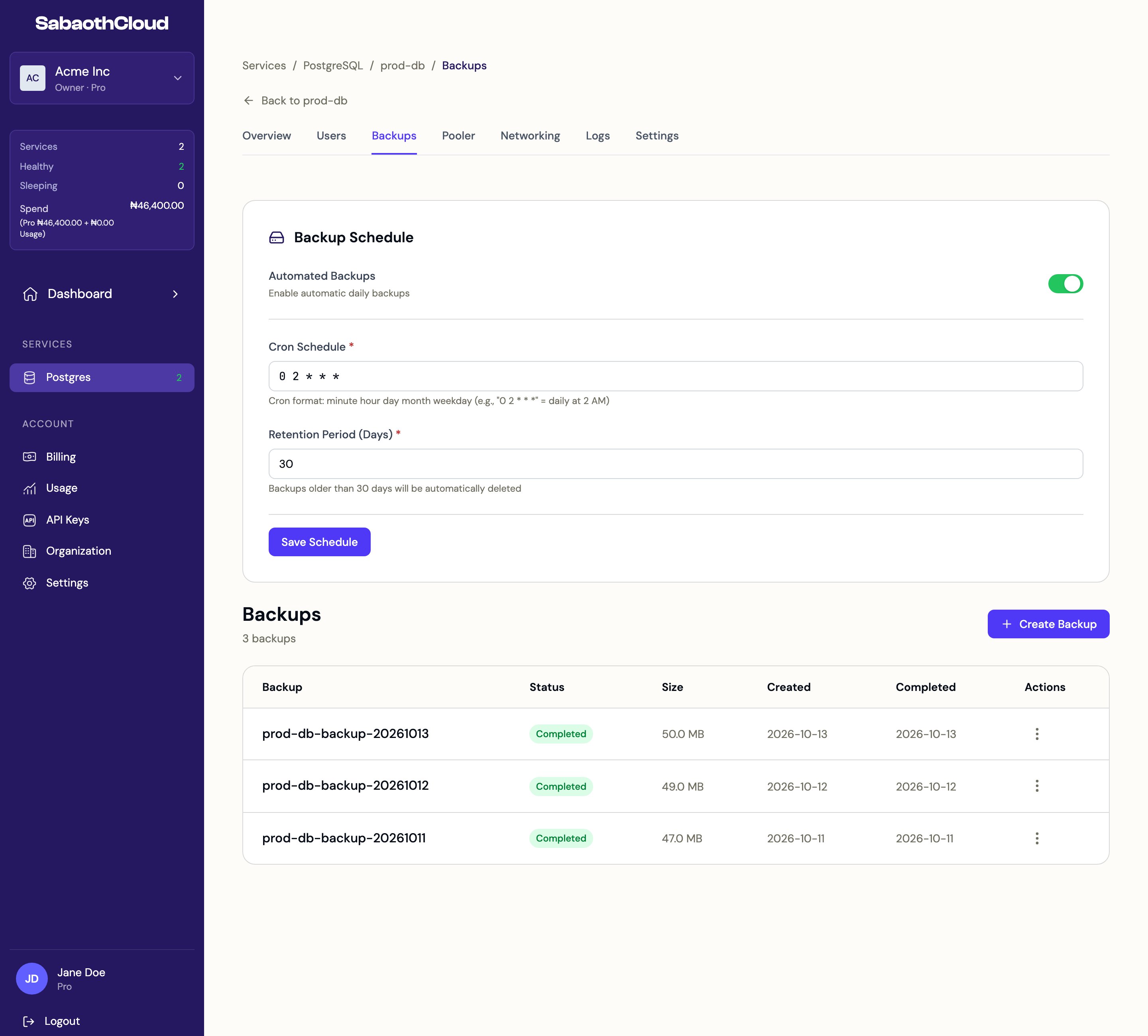 ## Backup schedule
Automated backups are on by default for new services.
| Setting | Description |
| - | - |
| **Automated Backups** | Turns daily automated backups on or off. |
| **Cron Schedule** | When backups run, in cron format: minute, hour, day of month, month, day of week. `0 2 * * *` means every day at 2:00 AM. |
| **Retention Period (Days)** | How long backups are kept. Older backups are deleted automatically. |
Change the settings and click **Save Schedule**.
Your plan includes a backup retention period: 7 days on Hobby, 14 on Starter, 30 on Professional and 90 on Business. See [Plans and pricing](/guides/pricing-plans).
## Create a backup now
Click **Create Backup** to take a backup straight away, for example before a migration or a large data change. It appears in the list with the status **Running**, then **Completed**.
| Status | Meaning |
| - | - |
| **Scheduled** / **Running** | The backup is in progress. |
| **Completed** | The backup can be restored. |
| **Failed** | The backup didn't finish. The reason is shown under its name. Try again, or contact support if it keeps failing. |
| **Expired** | The backup is past its retention period. |
## Restore from a backup
Restoring creates a **new** service from the backup. Your existing service is not changed.
1. Click the menu next to a **Completed** backup and choose **Restore Backup**.
2. Optionally enter a **New Service Name**. If you leave it empty, a name is generated.
3. Optionally choose a **Restore Point in Time** to restore the data as it was at that moment. It can be any time from when the backup started until now. Leave it empty to restore the backup as it was taken.
4. Click **Restore**.
## Backup schedule
Automated backups are on by default for new services.
| Setting | Description |
| - | - |
| **Automated Backups** | Turns daily automated backups on or off. |
| **Cron Schedule** | When backups run, in cron format: minute, hour, day of month, month, day of week. `0 2 * * *` means every day at 2:00 AM. |
| **Retention Period (Days)** | How long backups are kept. Older backups are deleted automatically. |
Change the settings and click **Save Schedule**.
Your plan includes a backup retention period: 7 days on Hobby, 14 on Starter, 30 on Professional and 90 on Business. See [Plans and pricing](/guides/pricing-plans).
## Create a backup now
Click **Create Backup** to take a backup straight away, for example before a migration or a large data change. It appears in the list with the status **Running**, then **Completed**.
| Status | Meaning |
| - | - |
| **Scheduled** / **Running** | The backup is in progress. |
| **Completed** | The backup can be restored. |
| **Failed** | The backup didn't finish. The reason is shown under its name. Try again, or contact support if it keeps failing. |
| **Expired** | The backup is past its retention period. |
## Restore from a backup
Restoring creates a **new** service from the backup. Your existing service is not changed.
1. Click the menu next to a **Completed** backup and choose **Restore Backup**.
2. Optionally enter a **New Service Name**. If you leave it empty, a name is generated.
3. Optionally choose a **Restore Point in Time** to restore the data as it was at that moment. It can be any time from when the backup started until now. Leave it empty to restore the backup as it was taken.
4. Click **Restore**.
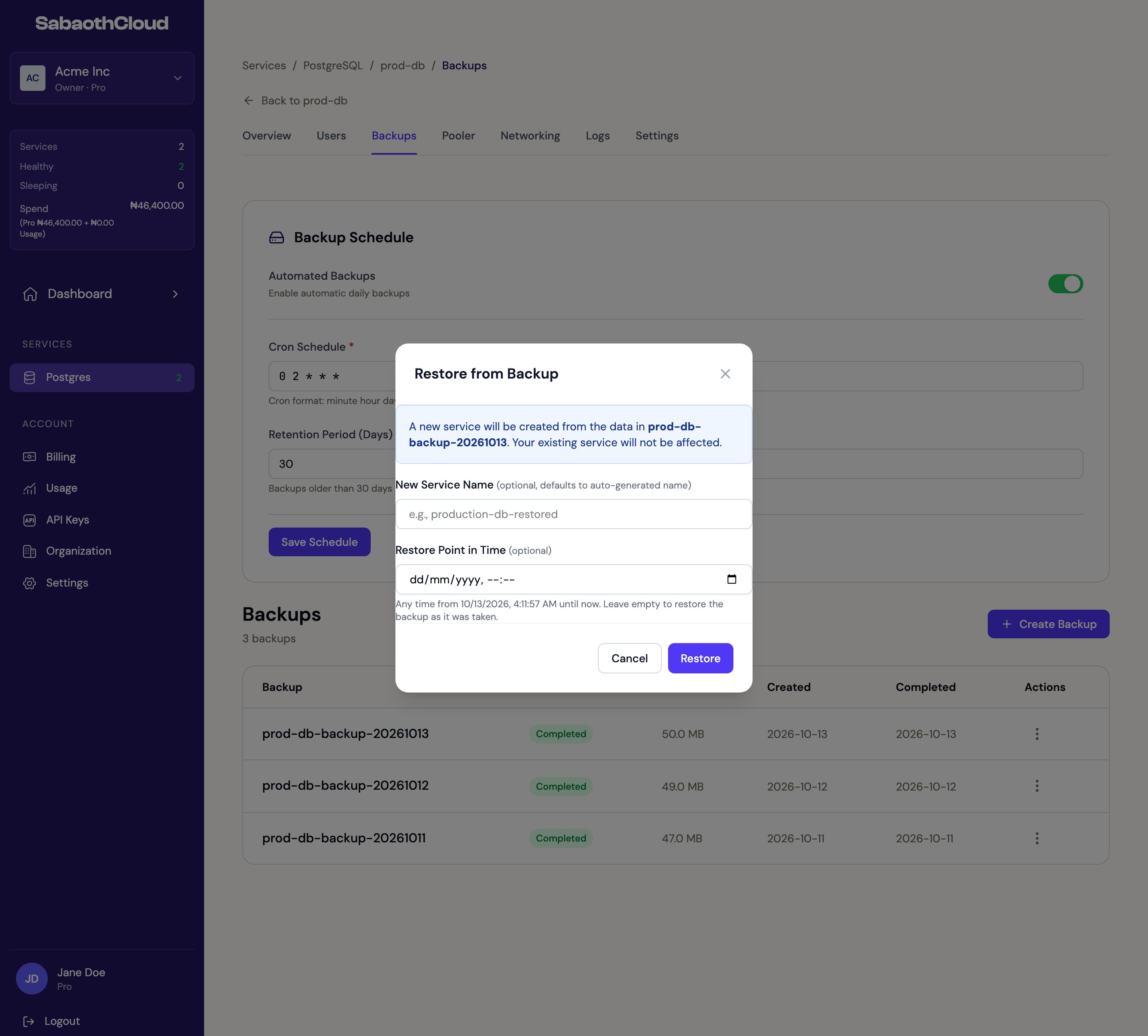 The dialog shows progress while the new service is created. You can close it and the restore keeps running. The new service appears on the **Postgres** page when it's ready.
A restored service counts against your plan like any other service, so your plan needs a free service slot and enough resources for it.
## Delete a backup
Click the menu next to a backup and choose **Delete Backup**, then confirm. This can't be undone.
This documentation is built and hosted on [Mintlify](https://mintlify.com), a developer documentation platform.
The dialog shows progress while the new service is created. You can close it and the restore keeps running. The new service appears on the **Postgres** page when it's ready.
A restored service counts against your plan like any other service, so your plan needs a free service slot and enough resources for it.
## Delete a backup
Click the menu next to a backup and choose **Delete Backup**, then confirm. This can't be undone.
This documentation is built and hosted on [Mintlify](https://mintlify.com), a developer documentation platform.